


Julia.LiMarzi
Klaviyo Employee
Klaviyo Employee
Nov 27, 2020 6:01 PM UTC

Adding images side by side in an email

You’re designing your email, and all you want is to have two images side by side, but how do you do it? Well, there are 2 ways:

  1. Use columns. In the Klaviyo email editor, choose Add Columns to Email and drag it to where you would like your images to be. It will populate with text blocks by default. Drag in your image blocks and delete the text blocks if you don’t plan to use them. This method will allow you to easily include 3-4 images in a row and can be used with any content type.
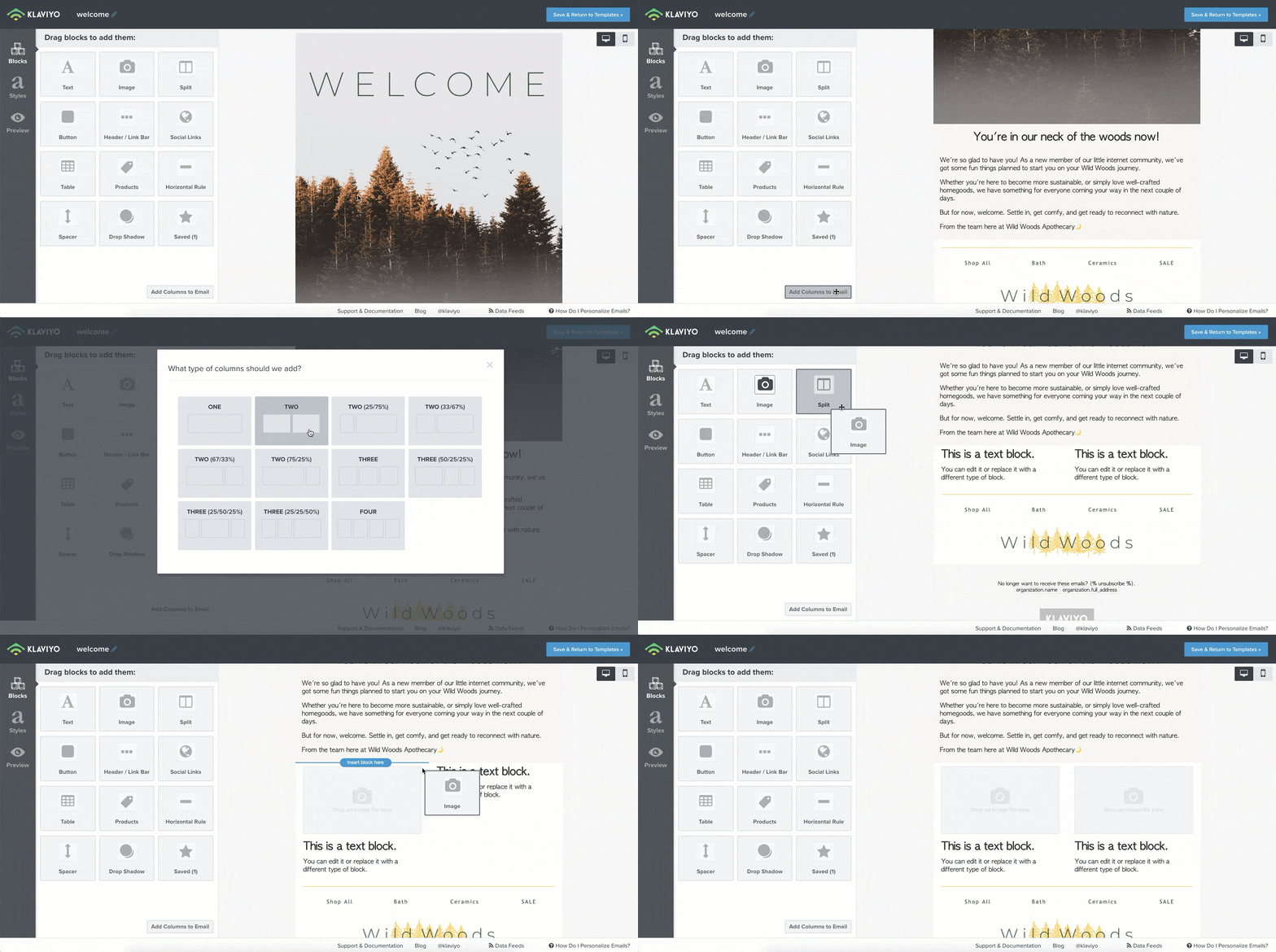
    using columns to add images


  2. Use a Split. In the editor within the block options choose Split and drag the block to where you want your images to be. The Block Tab will show a column editor. Under Layout/Types > Content change the dropdown for both columns to “image”, then click into each column tab to upload your images. This method allows you to adjust the width of your images easily after adding the split if you want one to be wider than the other.
    using splits to add images


Have any other questions about how to create unique image layouts in your emails? Ask away below or share examples of layouts you love.

    This topic has been closed for replies.

    22 replies

    retention
    Partner - Platinum
    2025 Champion
    Dec 1, 2020 2:43 AM UTC

    A third way to do this is to use a “Table Block” and have two (or more) columns of images.  The nice thing about using Tables is you can have more than 2 column of images, add additional rows, or mix it with other content (text/html). Just note, table elements do not “stack” in mobile but you can choose to have certain any columns show/hide on Desktop or Mobile.

    See example:


    Additionally, if you just want a clean table with no borders and no heading text, you can do the following:

    • Remove the Text in the Columns → Heading
    • Set the Border Top/Right to “None”


    Joseph Hsieh // retentioncommerce.com // X: @retention
    Julia.LiMarzi
    Klaviyo Employee
    Klaviyo Employee
    Dec 4, 2020 2:42 PM UTC

    Hey guys -- great stuff!

    I just want to ask if there is a way I can vertically align the contents of the left column to the height of the photo on the right column? Just like the one in your example @cassy.lee ?

    Is it just a matter of adding a spacer on top?

    I can’t speak to exactly how that example was made, but a spacer would be a great option. If you use a spacer you can adjust it so it looks great on desktop, and set it to be desktop only so that if your columns stack on mobile, you won’t have a large gap in content before your text. 

    -Julia
    cassy.lee
    Klaviyo Alum
    Dec 1, 2020 2:55 PM UTC

    @retention Using a Table Block is a great call out, Joe! I actually find that there’s a lot more flexibility in controlling the design with this type of block as well. 

    Additionally, while this isn’t necessarily adding images side by side, you can also use Add Columns to Email to include a CTA/button next to an image: 
     

    This article on Adding Columns to Emails is great for those that are looking to find more ideas/tips for email design! 

    Dec 7, 2020 12:02 AM UTC

    Hey thank you @Julia.LiMarzi and @cassy.lee!

    It was that gap on mobile that bothered me and made me ask about the spacer. I was really hoping there was a feature to vertically align the elements automatically. I was at a point where I was thinking of doing tables and add custom css but then realised that it would complicate things.

    The spacer on desktop looks like the best option now. And thank you for the tip to create 2 different blocks for desktop and mobile. I forgot that we can do that!!! :sweat_smile:

    Dec 4, 2020 6:51 AM UTC

    Hey guys -- great stuff!

    I just want to ask if there is a way I can vertically align the contents of the left column to the height of the photo on the right column? Just like the one in your example @cassy.lee ?

    Is it just a matter of adding a spacer on top?

    cassy.lee
    Klaviyo Alum
    Dec 4, 2020 11:54 PM UTC

     @daphne Agree with @Julia.LiMarzi here - a spacer is the best way to go about doing this. In the gif on this article, you can actually see that when it hovers over the space, it is a Spacer that is included
    https://help.klaviyo.com/hc/en-us/articles/115000807711-Add-Columns-to-an-Email#table-block3
     

    I tried adding the GIF directly here but it wasn’t loading, so apologies for the inconvenience!

    If you have any difficulties with this, or are looking for further design tips, feel free to share a screenshot with us of what your email looks like (with any private details like email address blurred out).

    Thanks,
    -Cass.

    Contributor I
    Jun 16, 2021 5:58 PM UTC

    I’ve been using tables and split blocks to create columns… and never even noticed the column button at the bottom! Super useful.


    Any idea how I can remove spacing between them? i went to block style and removed all padding but there is still white space between the columns

    Julia.LiMarzi
    Klaviyo Employee
    Klaviyo Employee
    Jun 21, 2021 6:15 PM UTC

    Hey @ayay123,

    There are a couple things that could be affecting the spacing between the columns.

    One is Padding, which you’ve already adjusted. Some blocks such as the text block also have the option to adjust Margins. Padding will adjust the spacing within the block whereas margins will adjust the spacing around the block in relation to other blocks. 

    If you are using an image block, also be sure to check that you’ve set the image to Fill Image Area, which is found in the Block Settings below the alignment toggle. 

    Hope this helps!

    -Julia
    David To
    Klaviyo Employee
    Klaviyo Employee
    Aug 3, 2021 8:52 PM UTC

    Hey @odp,

    When using the catalog lookup function, this would typically only display one product image unless you are looping and iterating over this variable. In which case, you should be able to apply conditional logic to check for the length of the list using a |length filter. This is also a bit reminiscent of how Klaviyo’s Recently Viewed Product function is set up where it uses a |length >= 3 to only highlight 3 products to display in the email. For further reading, I would also suggest taking a look at the Django Documentation to see what is possible using Klaviyo’s template editor.

    I hope you have a great day!

    David


    Problem Solver I
    Aug 4, 2021 1:31 PM UTC

    Thanks for your reply, very helpful.

    Hey @odp,

    When using the catalog lookup function, this would typically only display one product image unless you are looping and iterating over this variable. In which case, you should be able to apply conditional logic to check for the length of the list using a |length filter. This is also a bit reminiscent of how Klaviyo’s Recently Viewed Product function is set up where it uses a |length >= 3 to only highlight 3 products to display in the email. For further reading, I would also suggest taking a look at the Django Documentation to see what is possible using Klaviyo’s template editor.

    I hope you have a great day!

    David


    A simplified solution is posted below:

    {% for item in person|lookup:'WishlistItemIDs' %}

    {% if forloop.counter0|divisibleby:2 %}
    <div class="controlsEachRow">
    {% endif %}

    {% catalog item %}

    {{ catalog_item.featured_image.full.src }}

    {% endcatalog %}

    {% if forloop.counter|divisibleby:2 or forloop.last %}
    </div>
    {% endif %}

    {% endfor %}