


Julie Hayes
Klaviyo Alum
September 21, 2020
Tutorial

Sign-up form recommendations

  • September 21, 2020
  • 21 replies
  • 5674 views

When editing your forms in Klaviyo, you’ll find several customization options for display and targeting located within the Behaviors tab:

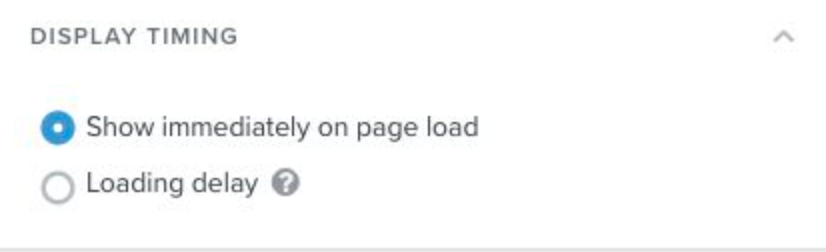
Display Timing: Setting a loading or scrolling delay creates a better experience for your visitors that’s both less intrusive and disruptive. Exit intent forms in particular have been shown to perform really well for this reason, and combining this behavior with a delay will ensure that your messaging reaches those visitors who have spent a decent amount of time on your site just before they go to leave.
 

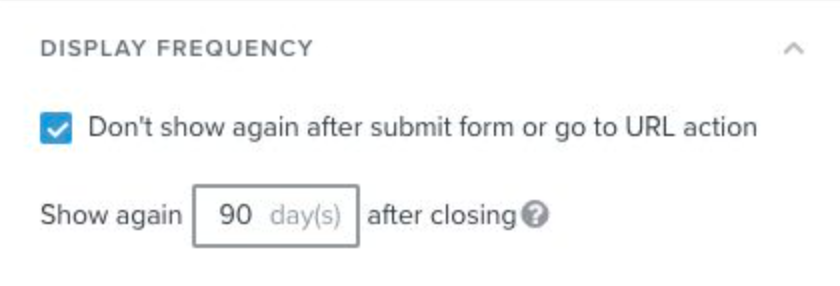
Display Frequency: It’s a good idea to hide forms from visitors who have already provided the information requested, but in the case where someone closed a form without submitting it, you can set the form to show again for that person after a certain number of days, when they may be more willing to subscribe.
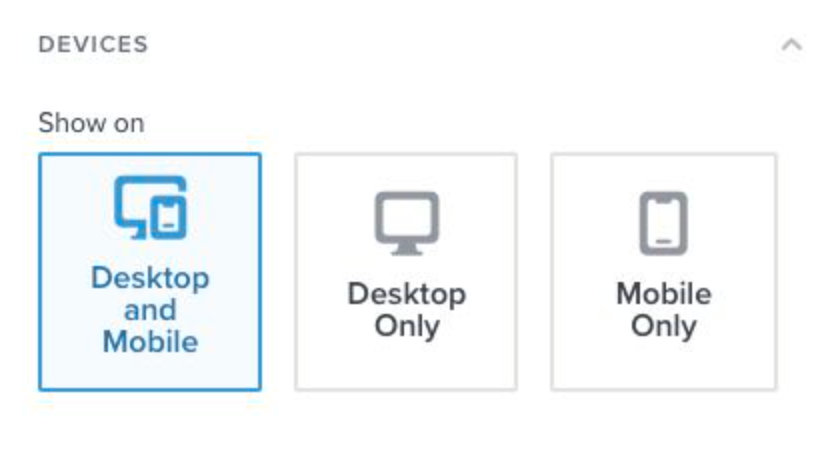
Devices: This is where you will choose which devices your form will appear on. Very often you’ll find you need to create a mobile-only version of a form that’s smaller or better optimized for smaller screens (e.g., having a phone number input instead of email, using dropdown menus or radio buttons instead of text inputs or checkboxes, etc.).
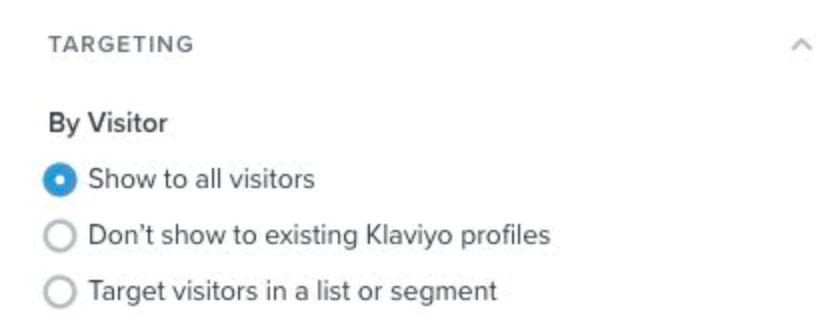
Targeting by Visitor: Here you can set your form to only show to specific lists or segments, and some best practice examples for this include: re-targeting recipients of a recent campaign with a form that contains similar branding or a special experience (think countdown timers) for those who click through the email (or targeting non-openers), targeting a VIP segment of big spenders with a coupon, or targeting a segment of past purchasers of a certain item or collection with a form advertising a new or similar product. 
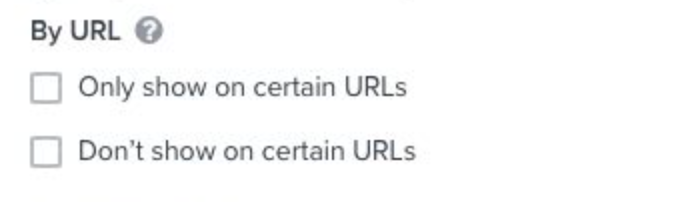
Targeting by URL: Targeting by URL can be very useful when it comes to creating a cohesive experience across all of your marketing channels. For example, you can target your form to only show to leads coming to your site from Facebook using the UTM parameters in the URL in order to provide them with a unique offer or promised content from the original ad.

You can also have forms that contain gender-specific messaging set to only show on URLs containing “womens” or “mens”, for example. 

Targeting an exit-intent form with abandoned cart messaging to your /cart URL can also be an effective strategy.
 

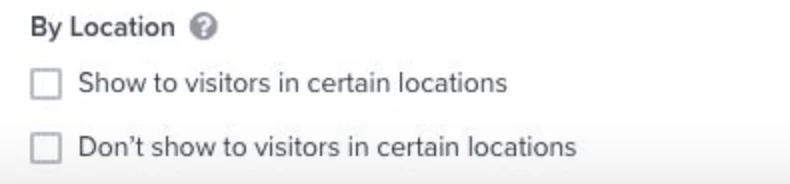
Targeting by Location: This becomes important if you sell in certain countries and want to show language-specific forms to customers based on where they’re located. Another common use case for this is targeting free shipping offers to visitors who are in your geographic area.


21 replies

stewart
Contributor I
Contributor I
January 22, 2021

Hi i was creating a landing page and wanted to make a pop up that would be locked on the screen until the visitor filled it out. is that possible with Klaviyo forms?

Defined Creations
Contributor I
February 18, 2021

Hi there,

I created embedded form ( qr can by customer from offline store )and popup form (for website visitors ), but i want to track different segment list on them, how to do this please.

As both will be assigned to the newsletter. 

David To
Klaviyo Employee
Klaviyo Employee
May 2, 2021

@stewart, at this time there isn’t such a functionality with Klaviyo’s popup forms. Customers will have the capability to close the signup form by clicking the “X” icon in the corner or by clicking out of the popup form area. Although this functionality is not native to Klaviyo, you can create your own custom popup form with this functionality by custom coding your own popup form using HTML/CSS. Since this would be a custom form, Klaviyo doesn’t have any instructions on how to accomplish this, however you can find some custom/legacy signup form information from the articles below:

@jockeyph-cs, if both of those signup forms, embed and popup, are adding users to the same list, you can use the following segmentation rules to differentiate which form users filled out to end up onto this list:

You’ll want to create two segments with this definition, with each segment using a different definition for the “Properties about someone, $Consent_Form_ID equals X” rule with each capturing your embedded signup form and your popup form. You can find how to identify your signup forms and their form ID by going into each of the signup form’s editor and looking at the web address/URL in your browser. The form’s specific ID can be found following the “forms/” section of the URL.

For example, if the URL read: https://www.klaviyo.com/forms/A1b2C3. Then A1b2C3 would be the specific form’s ID. You can then use this form ID within your segmentation rule to identify which form a customer filled out to be added your list.

Hope this helps!

-David

Problem Solver I
September 17, 2021

What is a good form submittal rate? Mine is currently at 2%.  Seems low!!

alex.hong
Klaviyo Alum
September 17, 2021

Hi @LealynPapaya,


Great question! Companies can vary on how they  calculate form submission rates, in Klaviyo, the normal form submission rate is 2.3%. However, you are correct in noting this seems lower than normal. Is your form possibly a mobile form?  Users don't take as long scrolling on a mobile device and could be contributing to low submission rates. To increase your rate, I suggest ensuring your form is best optimized for mobile viewing and therefore shorten the amount of time your form loads before showing to 1-2 seconds. 

For more insight, check out this Help Center Article on Form Behavior or this Klaviyo Academy class: Optimizing your Signup Form Experience


Thanks!

Alex

Problem Solver I
September 19, 2021

Thank you so much @alex.hong !!!


Contributor I
November 2, 2021

Is it possible to make my product discount code show up on the sign up form/pop up instead of the code being send to the customers email? Would be ideal if the customer can input their email and receive the code immediately on the pop up instead of leaving the web page. Is this an option?

David To
Klaviyo Employee
Klaviyo Employee
November 2, 2021

Hey @Agabbay1,

Great question! You should be able to accomplish this by placing a static coupon code on the success message of your signup form. This will allow contacts who complete the signup form to have the success message appear with the desired static discount code presented to the subscriber straightaway. 

Keep in mind though that because signup forms do not support dynamic variables and syntaxes, using a dynamic discount code would not be supported for this strategy. You can learn more about this from the Guide to Creating a Signup Form Help Center article. I may also suggest taking a look at some other Community posts that discuss this topic as well. I’ve included some posts below to get you started:

I hope this helps!

David

Contributor I
November 3, 2021

Hello, I’d like to ask what’s the best practice when you have multiple pop ups?

We wish to run 2 pop-ups but want people to only see 1 per visit. Is there any way to filter/place a behaviour condition on one of the pop-ups, so it doesn’t apper if the other one has?

Thank you!

David To
Klaviyo Employee
Klaviyo Employee
November 4, 2021

Hey @lubi,

That’s a great question!

At present, Klaviyo forms do not have the capability to limit your site visitors to see only one form if you planned on using multiple signup forms. To limit these signup forms however, I would recommend enabling the Don’t show to existing Klaviyo profiles under the form’s Targeting & Behavior settings. This setting will limit the form to only those contacts who are not already a part of your Klaviyo account. This means that if a contact were to receive the first signup form and subscribe, the second signup form or any thereafter that have this setting enabled would not appear. 

Another suggestion would be to limit your forms to each be using different display settings. This would allow the forms to appear based on different action the visitor takes; such as the first form appearing a few seconds after the page loads while the second form is set to only appear when the user intends to exit the page. 

If you haven’t already, I would suggest taking a look at the Guide to Creating a Signup Form and Guide to the Signup Form Builder Help Center articles to learn all the various settings available when building a signup form.

David