






Short answer: A back-in-stock flow in Klaviyo automatically emails customers when a product they requested becomes available again. To set it up: connect your ecommerce platform, verify inventory tracking in your catalog, capture the correct variant data via a signup form, and build a flow with a "Subscribed to Back in Stock" trigger plus a conditional split that checks real-time availability before sending.
You've got a product that sells out fast. That's a good problem…until you realize you're losing customers who would've bought if they'd known it was back.
A back-in-stock flow helps capture sales you’d otherwise lose by automatically notifying interested customers the moment inventory returns. This guide walks you through the complete setup for Shopify and Klaviyo, plus a troubleshooting checklist for when products restock but emails don't send.
This looks like a lot, but the actual build takes under an hour – here's what you actually need to know! 👇
What a back-in-stock flow does
A back-in-stock flow sends an automated email when a product someone wanted comes back into inventory. When a customer lands on your product page and sees "out of stock," they can enter their email to get notified when you restock. Once inventory returns, Klaviyo automatically sends them an email with a link to buy.
Here's the full sequence:
- Customer subscribes to notifications for a specific product variant (like a blue jacket in medium)
- Klaviyo logs a "Subscribed to Back in Stock" event with that variant's ID
- Your ecommerce platform updates the inventory count when you restock
- Klaviyo detects the change in its catalog and triggers the flow
- The email sends — but only if the variant is available, the data synced correctly, and the flow filters let it through
The flow is variant-specific, which matters more than you might think. If someone wants the medium blue jacket, they won't get an email when you restock the large or the green version. The system tracks down to the size, color, and style level.
Before you build the flow
Klaviyo doesn't track inventory on its own. It pulls data from your ecommerce platform (Shopify, BigCommerce, and others). When that sync breaks, your flow won't send– even if everything else looks perfect.
Three fields in Klaviyo's catalog control whether a back-in-stock trigger can fire:
| Field | What it needs to be |
|---|---|
| Inventory quantity | Must go from 0 → 1+ to trigger |
| Inventory policy | Must deny sales when out of stock (not "continue selling") |
| Variant availability | Must show as available |
First, check that your Shopify or BigCommerce integration is connected and actively syncing. Open Integrations in Klaviyo and look for a green "Connected" status next to your ecommerce platform. Then navigate to Content > Catalog and confirm your products are appearing there.
Next, verify inventory tracking is turned on in your ecommerce platform. In Shopify, you'll find this under product settings in a field called "Track quantity." Without inventory tracking enabled, your platform won't tell Klaviyo when items go out of stock or come back in.
You'll also want to turn off "Continue selling when out of stock" for products you want to include in back-in-stock flows. When this setting is on, your platform never marks items as unavailable, so the back-in-stock signup button won't appear on your product pages.
Finally, confirm catalog sync is enabled in your Klaviyo integration settings. This keeps product data flowing automatically – images, prices, inventory counts, all of it.
| What to check | Where | What you're looking for |
|---|---|---|
| Inventory quantity | Klaviyo catalog > variant details | Matches your platform's current stock level |
| Inventory policy | Your platform's product settings | "Don't continue selling" when out of stock |
| Variant status | Klaviyo catalog > variant details | Available |
| Product publish status | Your platform's product settings | Published to online store |
| Catalog sync | Klaviyo > Integrations > [Platform] > Settings | Real-time updates enabled |
Where the signup lives on your site
When a product runs out of stock, Klaviyo replaces your "Add to Cart" button with a "Notify me when available" button — automatically, through your ecommerce integration. No custom code needed.
When someone submits the form, Klaviyo captures their email consent and logs exactly which product and variant they want. That data becomes a "Subscribed to Back in Stock" event on their profile, with five properties your flow depends on:
| Property | Used for |
|---|---|
| Variant ID | Matches subscriber to the exact restocked product |
| Product Name | Email subject and body |
| Product URL | CTA button |
| Image URL | Product image in email |
| Price | Optional display in email |
The form is kept simple on purpose. Klaviyo's native form captures all of this automatically. Customize the button text, colors, and confirmation message under Content > Sign-up forms > Back in stock.
Custom forms require manual verification. The most common mistake is hardcoding the variant ID, which points every signup to the same product regardless of which page the customer is on. Test on multiple product pages and check the resulting events in customer profiles to confirm each one captures the correct variant.
To verify it's working: subscribe with a test email, go to Audience > Profiles, open your test profile's timeline, and confirm the "Subscribed to Back in Stock" event includes all five properties. Fix any gaps before building the flow.
The trigger event that starts everything
When someone submits a back-in-stock form, Klaviyo creates a "Subscribed to Back in Stock" event on their customer profile. This event includes everything you'll need later: product name, product ID, variant name, variant ID, image URL, price, and product page URL.
The subscription doesn't send an email right away. Instead, the flow waits until your ecommerce platform reports that the specific variant is back in stock, then sends the notification.
You can see these events by opening any customer profile in Klaviyo and scrolling to their activity timeline. Look for "Subscribed to Back in Stock" with product details listed below it.
Variant ID is particularly important if you sell products with multiple options. Someone who subscribed for a medium blue shirt won't get notified when you restock the large red one. The variant IDs have to match exactly.
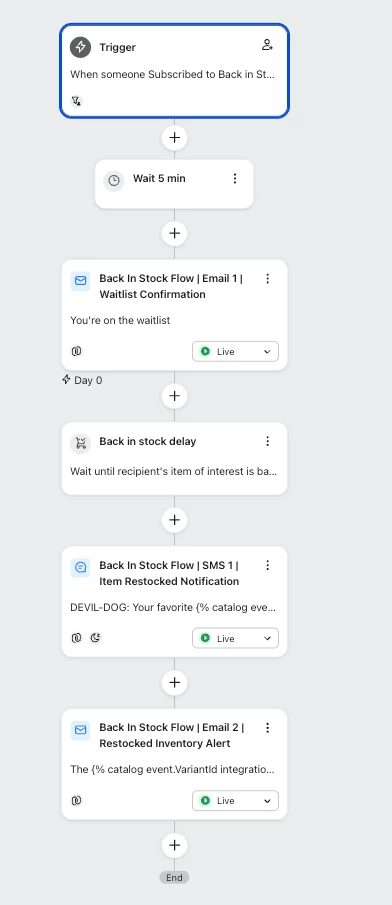
Building the flow structure
If you want to follow along, start building here.
Go to Flows > Create Flow. Look for the pre-built template called "Back in Stock" and select it. The template includes the trigger and a basic email structure you can customize.
The trigger is set to the "Subscribed to Back in Stock" metric. Anyone who submits the signup form enters the flow immediately, but they won't receive an email until their requested product actually restocks.
Here's a simple flow structure to start with:
- Email 1: immediate notification when the product is back
- Conditional split: check if they placed an order for that product
- Email 2: 24-hour reminder, sent only if they haven't purchased
Smart Sending: The first email is time-sensitive, so think carefully about your Smart Sending settings. If you have limited inventory, you might want to bypass Smart Send Time to ensure immediate delivery. You can adjust this in the email settings under "Smart Sending."
Add a flow filter to exclude anyone who already purchased the product since subscribing. Go to Flow Filters and add a condition like "Has not placed order where Product ID equals [product ID from trigger] since starting this flow."
You might also exclude anyone who received a back-in-stock email in the last 7 days. This prevents oversending if someone subscribes to multiple products that all restock at once.
Designing the email that converts
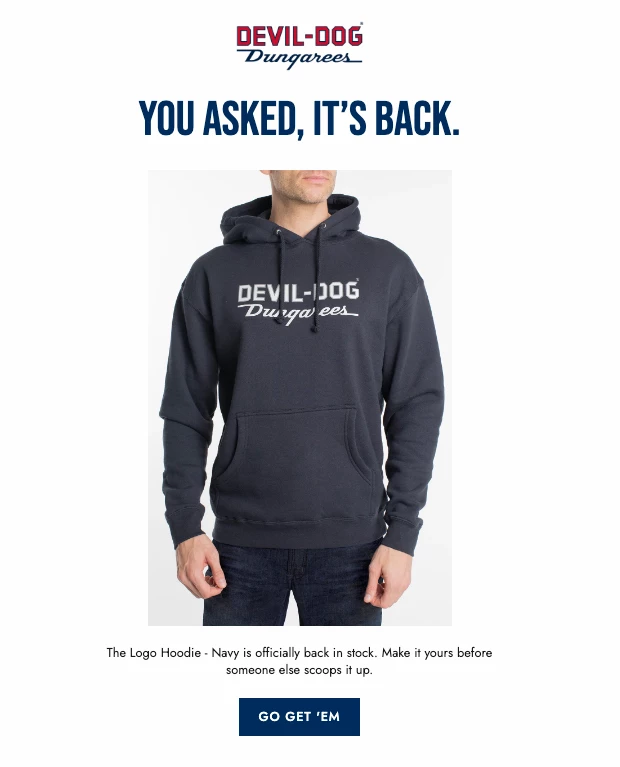
Your back-in-stock email has one job: get someone from their inbox to your product page. Start with a clear subject line like "Good news! [Product Name] is back in stock."
The email body should feature the product prominently. Use the image URL from the trigger event to display the exact item they requested. Below that, include the product name, variant (if applicable), and price.
Here's how to pull product details dynamically:
- Product name: {{ event.ProductName }}
- Variant: {{ event.VariantName }}
- Product image: {{ event.ImageURL }}
- Product URL: {{ event.ProductURL }}
Your call-to-action should be direct: "Shop Now" or "Get It Now" linking to the product page. Place the button twice, once near the top and once at the bottom.
You can create urgency honestly. Phrases like "Limited quantities available" or "You asked, we restocked" work well. If you genuinely have limited stock, say so.
Make sure your email looks clean on mobile devices. Most people will open this on their phone, often within minutes of receiving it.
What to check when emails don't send
This is the section I wish I'd had when I was first setting these up.
| Symptom | What to check | Where |
|---|---|---|
| Flow never triggers | Inventory tracking on? "Continue selling" off? Product published? | Your platform's product settings |
| Flow triggers, no email | Flow status set to Live? | Flow builder, top right |
| Customer not receiving email | Email consent captured? Smart Sending blocking? | Klaviyo profile > consent |
| Platform shows in stock, Klaviyo doesn't | Force catalog resync | Klaviyo > Integrations > [Platform] > Settings |
| Wrong variant notified | Variant ID hardcoded in form? | "Subscribed to Back in Stock" event in test profile |
| Email sends but product already sold out | Conditional split missing before send | Flow builder |
| Some subscribers never notified | Minimum inventory threshold too high? Notifying in groups? | Settings > Back in stock settings |
Pre-launch checklist
Before setting the flow to Live:
| ✓ | Check |
|---|---|
| Catalog syncing; inventory fields match your platform | |
| "Continue selling when out of stock" disabled | |
| Signup form capturing all five event properties | |
| Flow trigger set to "Subscribed to Back in Stock" | |
| Conditional split checks stock before sending | |
| Flow filters exclude recent purchasers and recipients | |
| Test restock simulation completed and email verified |
When back-in-stock flows fail, it's almost never the flow itself — it's the data feeding into it. Get the catalog and form right first, test before you go live, and the flow will do exactly what it promises.
Start simple, then optimize
Back-in-stock flows typically drive strong performance because the intent is already there. Someone who subscribes is telling you exactly what they want to buy. You just need to let them know when it's available.
Start with a single, well-crafted email. Once you confirm it's working reliably, you can test additions like SMS notifications for subscribers who've opted into text messages, or a second email for people who don't purchase right away.
Monitor your flow analytics for the first few weeks. Look at how many people are entering the flow, how many emails are actually sending, and most importantly, how many recipients are placing orders. If your send rate is lower than your subscription rate, work through the troubleshooting checklist.
The goal is simple: turn every "sold out" moment into a future sale. When someone can't buy from you today, a back-in-stock flow keeps you top of mind when they can.
Helpful resources and next steps
If you are new to flows entirely, check out this Help Center article about getting started.
- How back in stock flows work
- 10 email automation examples
- How to build a back in stock flow
- How to set up a back in stock form
- How to use event data to personalize flow emails
- How to use SMS in your back in stock flows
- How back-in-stock SMS turns waitlists into revenue
- MMS for back in stock
- Flow best practices and examples
Your turn: let’s talk “BIS” strategy
What's your biggest question or challenge with Back in Stock flows? Are you stuck on setup, trying to optimize an existing flow, or figuring out how to handle variants or inventory caps?
And if you've already got a BIS flow live: What's been your most surprising learning or win so far? I'd love to hear what's working (or not working) for you.