

I design my emails as a series of continuous images, and sometimes fine lines appear between the image blocks. I found another post discussing the lines, but no fix.
I have noticed that the lines will appear/ disappear depending on the size I’m viewing the emails and from desktop to mobile.
I have the padding set to 0. I tried to add a background color to the text blocks/ color behind the images, but that doesn’t fix the issue. I tried jpg and png images in a host of sizes to see if that would make an impact.
Has anyone found a fix to this issue?
Thanks!
Ariel
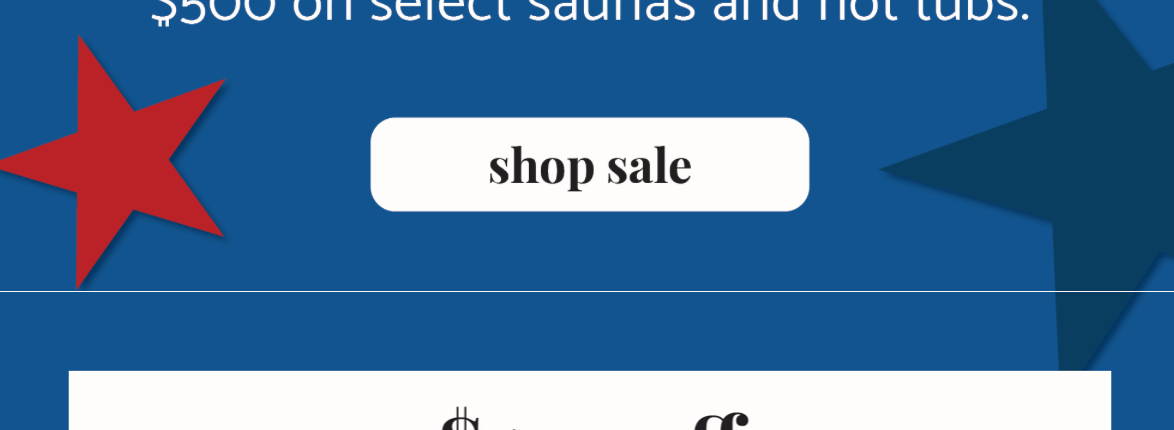
Fine line appearing between image blocks
Best answer by Taylor Tarpley
Hi @Ariel_EvryCreative,
Thanks for that follow up!
Yes, unfortunately, styling with Outlook is tricky and might not always render exactly how you want. These styling issues are a common occurrence for Outlook as it doesn't do well with HTML. There is a Litmus article that is pretty helpful for sorting our rendering issues. I would also recommend to using Litmus to preview how your emails will render in Outlook and other email clients. If you’re curious, you can determine how many of your viewers for a given campaign opened the email on Outlook. Please navigate to an already sent campaign and select the Advanced tab from the campaign analytics menu. Here, you can view ‘Performance by Email Client’ to see how many opens were tracked within Outlook.
However, although they all link to different URLs you should be still able to have these different image blocks in one section of the editor to mitigate the issue, which would be your best best instead of creating more sections.
Thank you for asking your question! Great troubleshooting so far!
Do you mind confirming a couple things to help us identify this issue? For instance, can you confirm what inbox provider you’re using when you see this error? Additionally, can you confirm that to make these continuous images, you’re using split images within the email template?
If so, then this could be the reason why you’re seeing this fine lines between the different images. These lines display as a result between the images due to how different inboxes support (or do not support) outline elements. Due to this behavior, sometimes the email client will add these gaps.
In order to fix this as much as possible, I’d recommend including all the image blocks within a single section and then apply a content background color to the section. This way, any gaps between the images will be filled in with the appropriate background color. The key thing to note here is that the background color needs to be on the section content color to work. If you apply it on the block level, it will still show the gap.
Thank you for your reply! I am using the Apple mail client on iPhone and my laptop. I did see in the forum that lines also show up in Outlook.
Unfortunately, the reason I cut up the images is because they all link to different urls. I don’t see a way of tagging different parts of the same image with different links (if you know of a way, let me know!).
I can potentially try adding different sections and coloring the background- thanks for that idea. I do like the look of the email content as a container with a different background color though. To retain that look, maybe I can try a background image with the sides colored as a gray background and the center colored to match the content blocks. I feel like this might be a little trick to line-up, as I’m not sure how much resizing happens with background images as windows are resized. Any thoughts on this? I might give it a try and see how it looks.
Yes, unfortunately, styling with Outlook is tricky and might not always render exactly how you want. These styling issues are a common occurrence for Outlook as it doesn't do well with HTML. There is a Litmus article that is pretty helpful for sorting our rendering issues. I would also recommend to using Litmus to preview how your emails will render in Outlook and other email clients. If you’re curious, you can determine how many of your viewers for a given campaign opened the email on Outlook. Please navigate to an already sent campaign and select the Advanced tab from the campaign analytics menu. Here, you can view ‘Performance by Email Client’ to see how many opens were tracked within Outlook.
However, although they all link to different URLs you should be still able to have these different image blocks in one section of the editor to mitigate the issue, which would be your best best instead of creating more sections.
I’ve run into this issue a few times now and I think I finally have a solution that’s working consistently - or at least it may be one tool in the toolbox to address this all too common problem. One caveat: In my case, the images being adding are supposed to be the full content width, which I think is a common approach, but your mileage may vary if you’re doing something else.
It’s very important the final sizes of images are integers - no decimals! If your image is 600.22 px wide in the final product, it could create problems in some inboxes, especially Outlook.
For me cropping the image a little bit worked!
That might help if Klaviyo’s email builder crops by pixel and not fractions of a pixel.
I realized in my image creation and processing that the sizing would change in increments so tiny they could go unnoticed. There are a lot of steps along the way where a tiny size change may occur, these are snags I came across:
Exporting from Adobe Illustrator or other software. Check the properties of your artboard X Y coordinates. If your artboard is 600px wide, but your X coordinates is something point .57238 (maybe from moving it manually) it’ll get rounded and suddenly you have a 601 px wide asset.
If you compress a PNG, depending on the tool - maybe using Klaviyo’s compression on upload - it may come out the other side of that process a slightly different size.
If you upload an image to Klaviyo with a width that differs from your container width, it will of course resize the image. That might be OK, if for example you upload a 1200 px wide image intended for a 600 px wide container, but in that example, if your height is an odd number, say 425px, you’ll end up with an image that’s 600 x 212.5 and that decimal may result in an errant line.
So, when you preview the email, inspect your images, and make sure all their sizes are whole numbers.
Search saves time. Contributing compounds value.
The ROI of your reply? One helpful answer can support dozens of teams, build your credibility, sharpen your own expertise over time, foster connectivity, and create good karma – because what goes around comes around. The community is what YOU make it.