


Contributor I
August 8, 2024
Solved

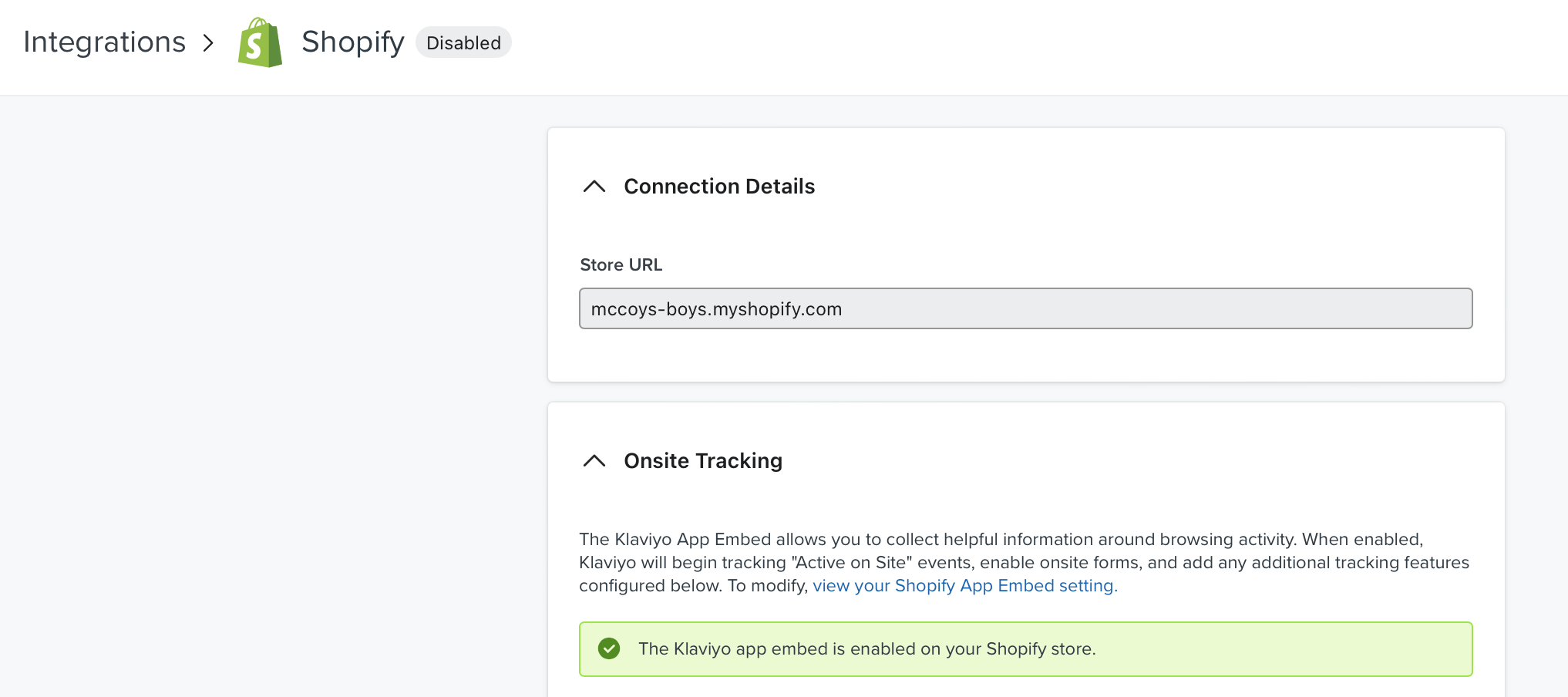
Shopify saying disabled

  • August 8, 2024
  • 1 reply
  • 141 views

I am trying to link my company Shopify account to be able to start creating some flows. It says successfully linked, but at the top of the screen, this is showing up saying disabled, and my flows feel prompting me to re-link the Shopify, even though I keep “successfully” linking them?

 

This topic has been closed for replies.
Best answer by Sujal

It seems you've successfully linked your Shopify account to Klaviyo, but the integration is showing as disabled and your flows are prompting for re-linking.

Potential Solutions:

  1. Re-authenticate Shopify Integration:

  2. Check Shopify Store Status:

    • Ensure your Shopify store is active and not experiencing any issues. A frozen or suspended store might prevent Klaviyo integration.
  3. Review Klaviyo Integration Settings:

    • Double-check all settings within the Klaviyo Shopify integration to ensure everything is configured correctly. Pay attention to API keys, store URL, and any specific permissions required.
  4. Test Shopify Form and Newsletter Tag:

    • Verify that your Shopify signup form is correctly adding the "newsletter" tag to customer profiles. This is crucial for Klaviyo to identify subscribers.
  5. Klaviyo Support:

    • If you've tried the above steps and still encounter issues, contact Klaviyo support directly. They can investigate the problem further and provide specific guidance.

Additional Tips:

  • Clear your browser cache and try reconnecting in an incognito window to rule out browser-related issues.
  • Check for any recent Shopify or Klaviyo updates that might have affected the integration.

1 reply

Sujal
Expert Problem Solver II
SujalAnswer
Expert Problem Solver II
August 8, 2024

It seems you've successfully linked your Shopify account to Klaviyo, but the integration is showing as disabled and your flows are prompting for re-linking.

Potential Solutions:

  1. Re-authenticate Shopify Integration:

  2. Check Shopify Store Status:

    • Ensure your Shopify store is active and not experiencing any issues. A frozen or suspended store might prevent Klaviyo integration.
  3. Review Klaviyo Integration Settings:

    • Double-check all settings within the Klaviyo Shopify integration to ensure everything is configured correctly. Pay attention to API keys, store URL, and any specific permissions required.
  4. Test Shopify Form and Newsletter Tag:

    • Verify that your Shopify signup form is correctly adding the "newsletter" tag to customer profiles. This is crucial for Klaviyo to identify subscribers.
  5. Klaviyo Support:

    • If you've tried the above steps and still encounter issues, contact Klaviyo support directly. They can investigate the problem further and provide specific guidance.

Additional Tips:

  • Clear your browser cache and try reconnecting in an incognito window to rule out browser-related issues.
  • Check for any recent Shopify or Klaviyo updates that might have affected the integration.
Sujal Shrestha | www.theklientx.com