Hi there @KoalaPad, and welcome back to the Community!
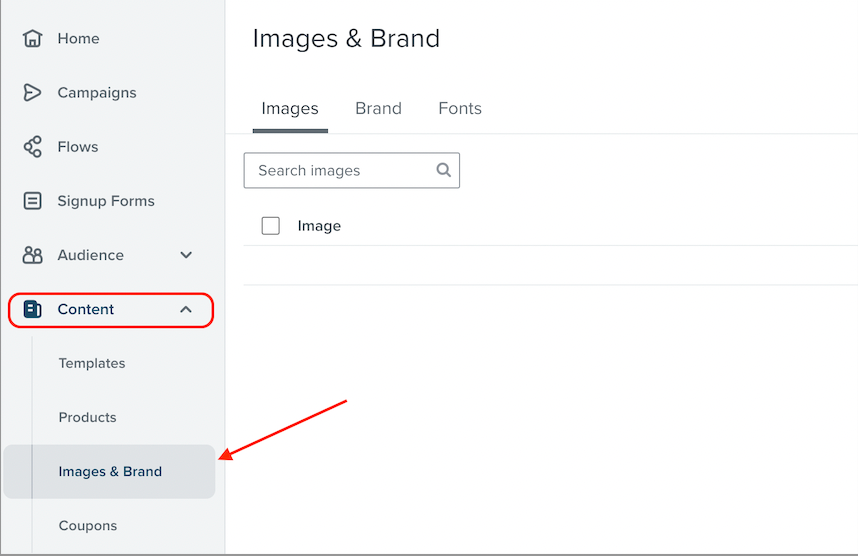
Just as @Bobi N. pointed out, images can be imported in bulk by navigating to the Images and Brand menu item that’s located under Content on the left menu panel:
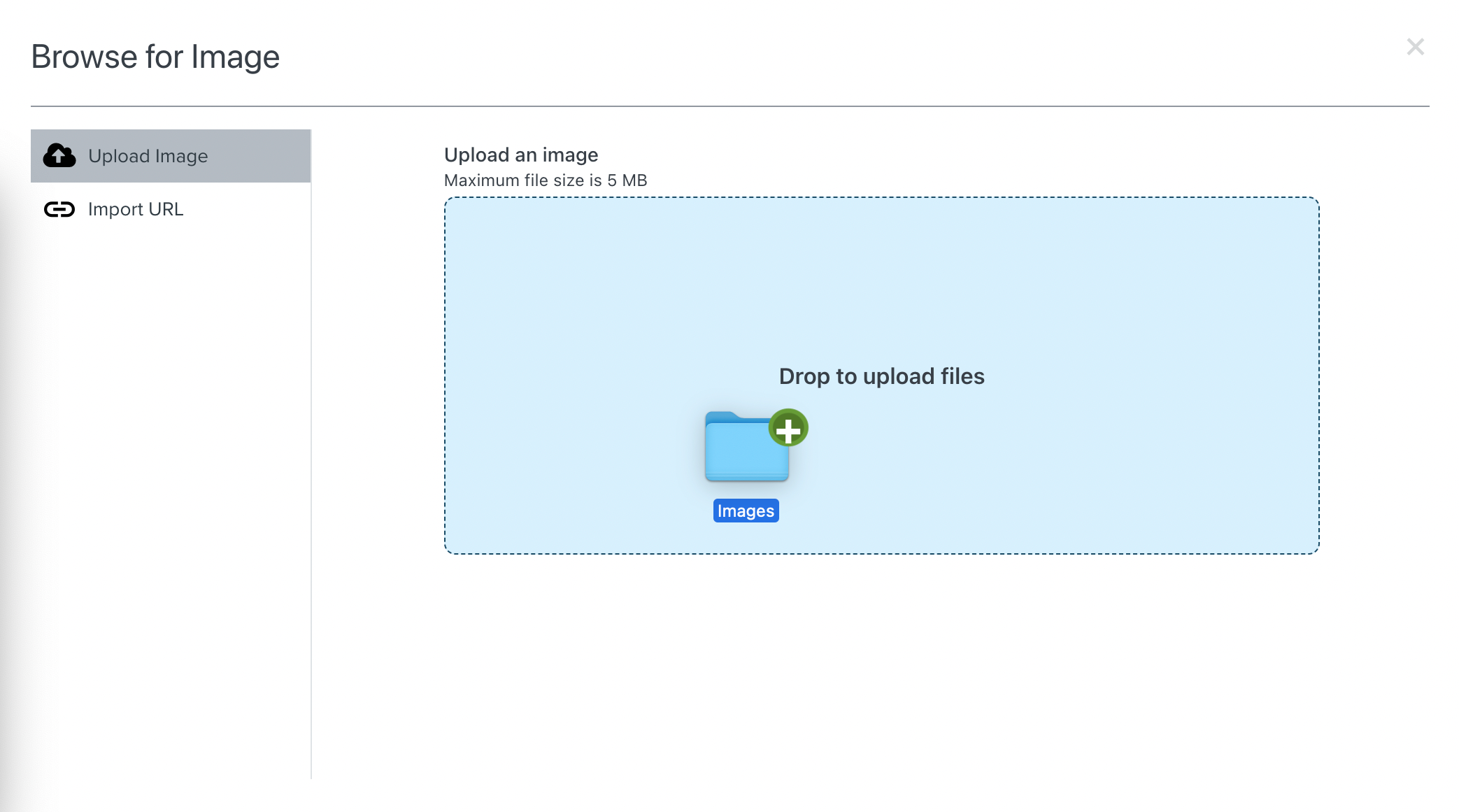
From there, you can easily upload a folder of images by clicking the Upload Images button at the top right of the page and dragging the desired folder from your desktop into the drop zone like so:
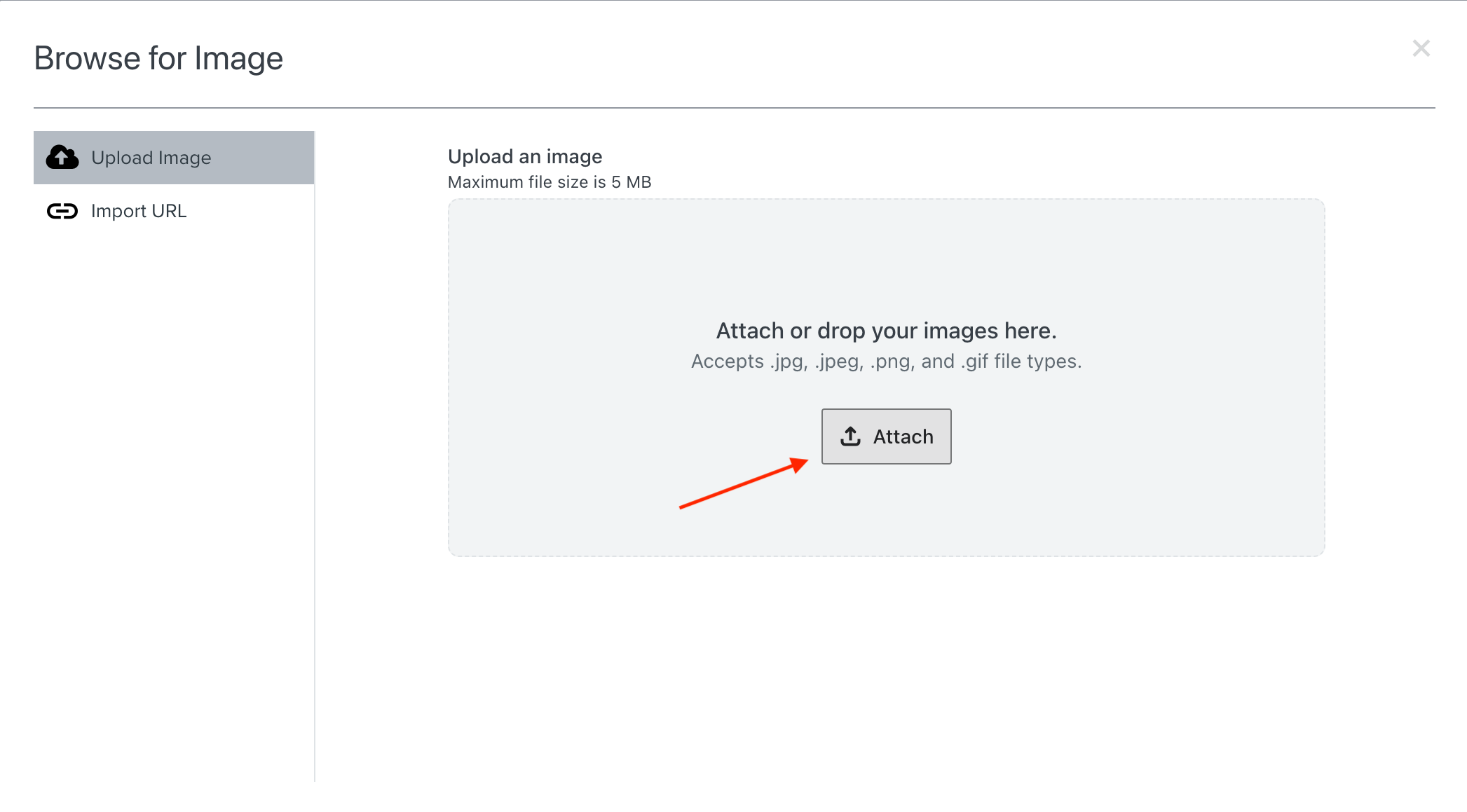
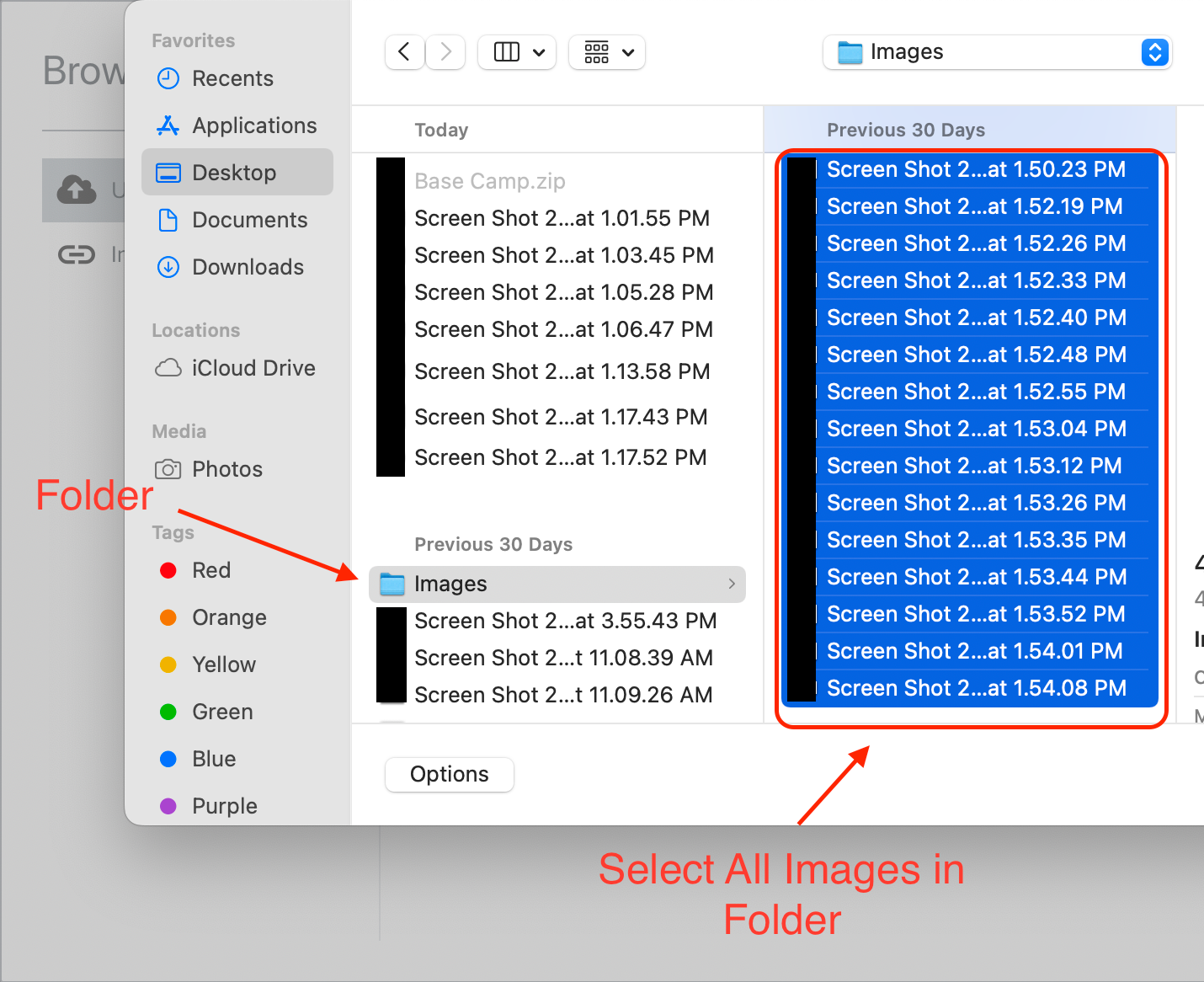
Alternatively, you can click on the Attach button which will prompt you to select images from your desktop file browser. However, you won’t be able to select the actual folder from this menu, and instead you will have to click into the folder and drag-select all of it’s contents:
Then just click Open, and all of your images will be imported into Klaviyo!
Hi there @KoalaPad, and welcome back to the Community!
Just as @Bobi N. pointed out, images can be imported in bulk by navigating to the Images and Brand menu item that’s located under Content on the left menu panel:
From there, you can easily upload a folder of images by clicking the Upload Images button at the top right of the page and dragging the desired folder from your desktop into the drop zone like so:
Alternatively, you can click on the Attach button which will prompt you to select images from your desktop file browser. However, you won’t be able to select the actual folder from this menu, and instead you will have to click into the folder and drag-select all of it’s contents:
Then just click Open, and all of your images will be imported into Klaviyo!
Thank you for this! Because I can’t upload a folder that is larger than 5mb I was wondering if there was another solution. I see what I need to do now. Thank you!