This topic has been closed for replies.
Best answer by Dov

Hi @mia & @Ciera,

Thank you for your replies.

@mia I noticed a colleague of mine was able to assist in the meantime and so I am summarizing his comments in this thread. @Ciera I hope this information is helpful for you as well.

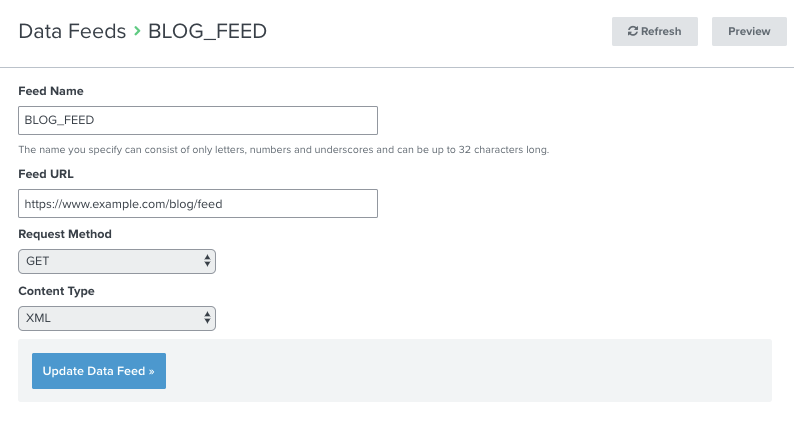
First please ensure that your feed is valid. You can test this by previewing your feed from the “Data Feeds” tab.

You can also preview by clicking the Edit dropdown menu from the Data Feeds tab, and selecting Preview.

mceclip2.png

Also, keep in mind that the feed must be a valid XML format and which should be formatted like the following: https://rss.app/feeds/UNIQUE_FEED_ID.xml.

Per our documentation, you can also set up an Instagram web feed using their Basic Display API, or by using a third-party app. For example. you will find Yotpo’s guide to integrating with Klaviyo here. It explains how to set up the data feed here Displaying Review Highlights in Klaviyo.

Hope this was helpful!

16 replies

Contributor I
September 21, 2021

I have the same problem. I can’t se the Instagram feed in my e-mail. 

This is how it looks. I don't see any errors anywhere. 


Dov
Klaviyo Alum
September 21, 2021

Hello @MiaKT,

Thank you for sharing this with the Klaviyo Community.

Can you confirm if you are able to view the feed in a preview email? Or are the images not showing up in either live and preview emails? 

DD
Contributor I
September 22, 2021

The images are not showing up in preview emails.

Dov
Klaviyo Alum
September 22, 2021

Hi @MiaKT,

Thanks for sharing that information.

If you have already run through the steps described in the thread above, I recommend contacting support to look into your specific use-case. 

DD
Contributor I
October 8, 2021

Hi,

Same here.

rss.app OK / Data feed OK
But I can’t get image, there is a “same origin” error.

Thank.

— Edit : Work in gmail webmail, not in Mail for Mac

Contributor II
August 30, 2022

Another easy way to fix your Instagram feed is to log out of your account and then log in once again. On your computer, just click on your profile photo in the top right corner and then select the Log Out option. From your phone or tablet, you can just click on the hamburger icon in the top right


Hope this helps