Contributor I
May 22, 2022
Solved

Removing Smart Sending for Flow

  • May 22, 2022
  • 4 replies
  • 1828 views

Hi everyone,


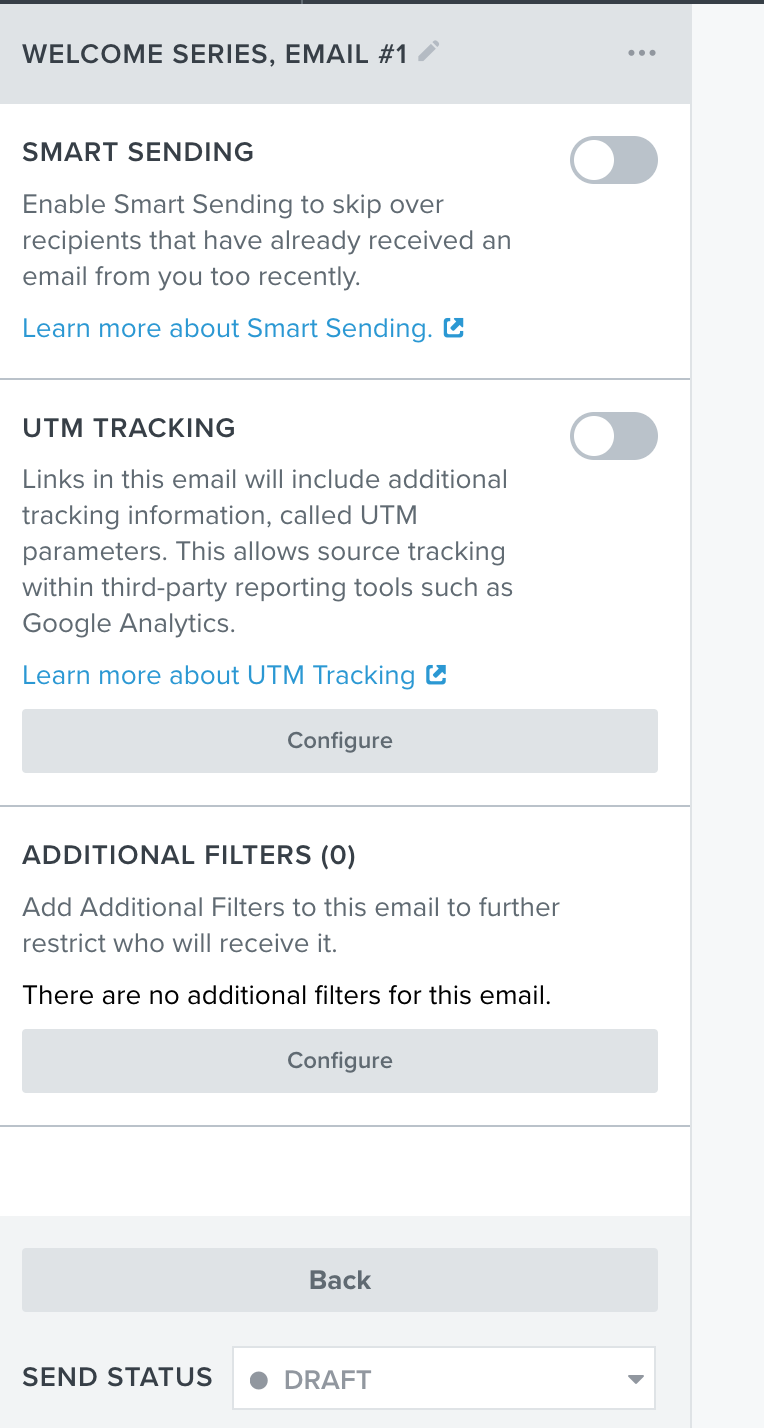
I have turned off smart sending in the settings on a welcome series FLOW as per below image:

BUT,


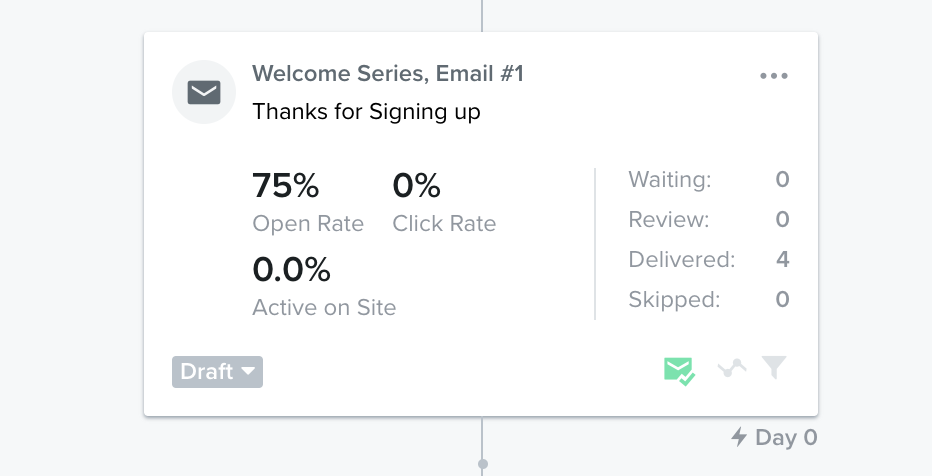
it is still appearing in green as per below image and Im not sure what to do.


Can someone please show me how what I am doing wrong?


Thanks


Ben

This topic has been closed for replies.
Best answer by Dov

Hi @BK9999,

Thanks for sharing this with the community.

It doesn’t look like you’re doing anything wrong here.

Try cloning the flow message, and re-toggling smart sending on and off again for the cloned version. If that works, I recommend simply using the cloned version of the flow message.

If that does not remedy the situation, try saving the flow message as a template, deleting the flow message (keep in mind this will remove all data associated with this flow message) and re-adding it using the saved template.

I also recommend testing the flow message itself. You can achieve this by setting that flow email to manual mode and quick adding a profile that’s already recently received an email to the list that triggers the flow. When a flow message is set to manual, you will see all ready-to-review-and-send messages in the Needs Review section within the Analytics snapshot in the left-hand sidebar. By clicking View all Analytics, you will be taken to a report where you can manually dispatch the flow message.  It could very well be that smart sending is still disabled in practice (despite the icon).

I hope that’s helpful.

 

4 replies

Dov
DovAnswer
Klaviyo Alum
May 23, 2022

Hi @BK9999,

Thanks for sharing this with the community.

It doesn’t look like you’re doing anything wrong here.

Try cloning the flow message, and re-toggling smart sending on and off again for the cloned version. If that works, I recommend simply using the cloned version of the flow message.

If that does not remedy the situation, try saving the flow message as a template, deleting the flow message (keep in mind this will remove all data associated with this flow message) and re-adding it using the saved template.

I also recommend testing the flow message itself. You can achieve this by setting that flow email to manual mode and quick adding a profile that’s already recently received an email to the list that triggers the flow. When a flow message is set to manual, you will see all ready-to-review-and-send messages in the Needs Review section within the Analytics snapshot in the left-hand sidebar. By clicking View all Analytics, you will be taken to a report where you can manually dispatch the flow message.  It could very well be that smart sending is still disabled in practice (despite the icon).

I hope that’s helpful.

 

DD
BK9999Author
Contributor I
May 29, 2022

Thank you DD

Contributor I
December 7, 2022

To clarify, if campaign was already sent and smart sending withheld distribution of the emails… do I (1) change the settings in the campaign post sending and they will send again or (2) clone the campaign, reassociate lists and resend?

Please advise.

Thanks.

Dov
Klaviyo Alum
December 7, 2022

Hi @bag-up,

Thanks for your question.

Changing the smart sending settings after the campaign has sent will not re-send the campaign email.  If you want to re-send to users who were skipped originally because of smart sending, you’ll want to export the skipped users into a .csv, clone the campaign, re-import them into another list and re-send the cloned campaign to those users in the new list.

Thanks for being a community member.

DD