Hi @sleeps1007 ,
I would suggest removing the App Embed in your Shopify store and then re-adding it to see if this will allow the App Embed to install properly on your store page:
- Login to the correct Shopify admin.
- Login to Klaviyo > navigate to your Shopify integration Settings
- Click on the link: "view your Shopify App Embed setting"
- Toggle OFF the app embed
- Click SAVE
- Navigate back to Klaviyo > Shopify integration Settings > and refresh the page
- Navigate back to Shopify
- Toggle ON the app embed
- Click SAVE
- Navigate back to Klaviyo > Shopify integration Settings > refresh the page
Once the App Embed has been enabled and the code snippet has been injected to your store page, the Signup Form should then begin populating.
When the Shopify integration setting isn't recognizing the App Embed being enabled it's often because the "SAVE" button needs to be clicked on the Shopify page or the page in Klaviyo needs to be refreshed.
Here is an additional guide you can follow:
- From your Klaviyo dashboard, navigate to the Integrations tab.
- Click Enabled Integrations and select Shopify. You’ll be brought to the integration settings page.
- Here, you’ll see a message calling out that your Klaviyo app embed is not yet enabled. Click the link labeled view your App Embed setting here to be brought into Shopify.
(Note that the setting to enable Viewed Product is checked by default, so Viewed Product will start tracking once you enable the app embed.)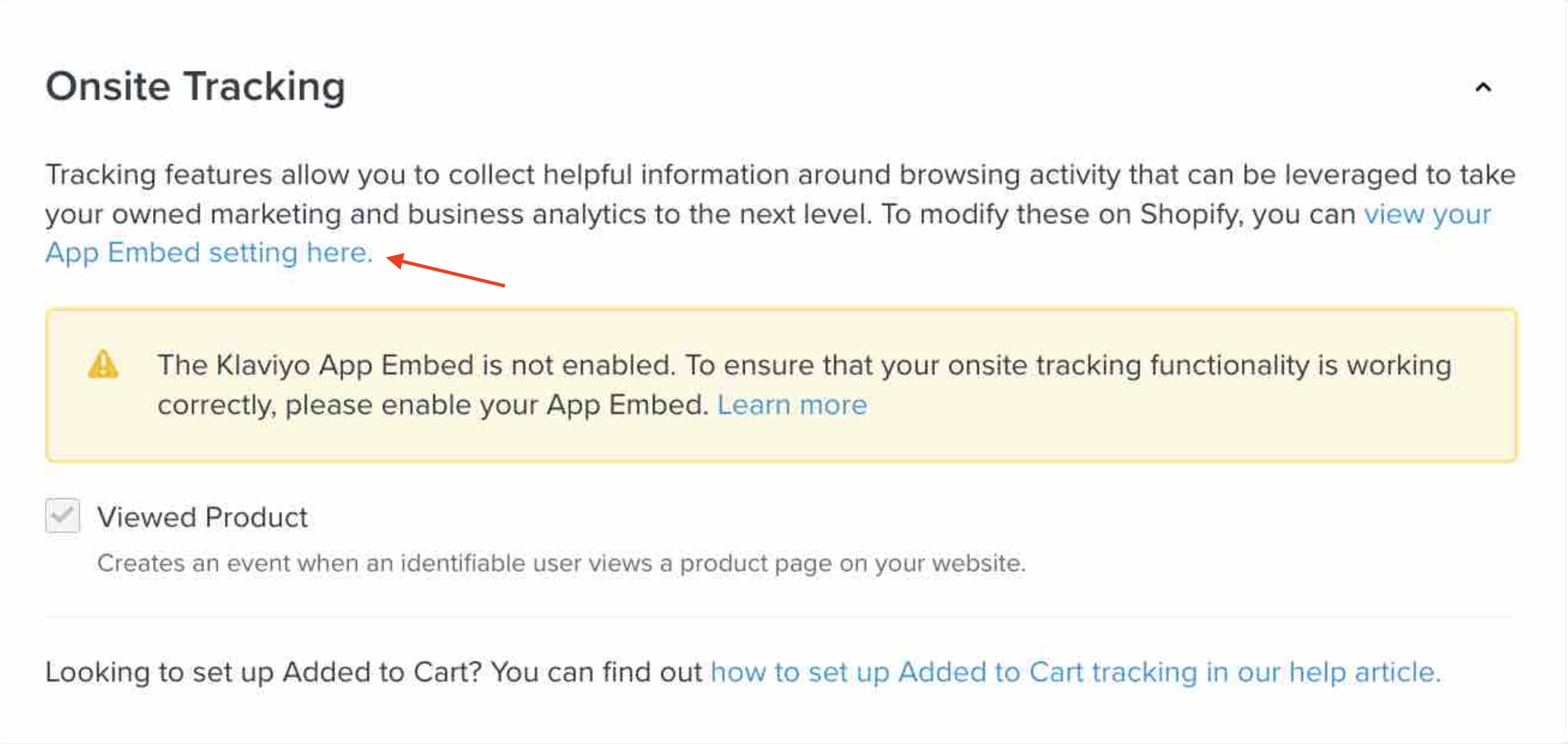
- If prompted to do so, sign into Shopify using the account you integrated with Klaviyo.
- You’ll be brought to your theme setting’s App embeds tab. Make sure the Klaviyo app embed is toggled on.
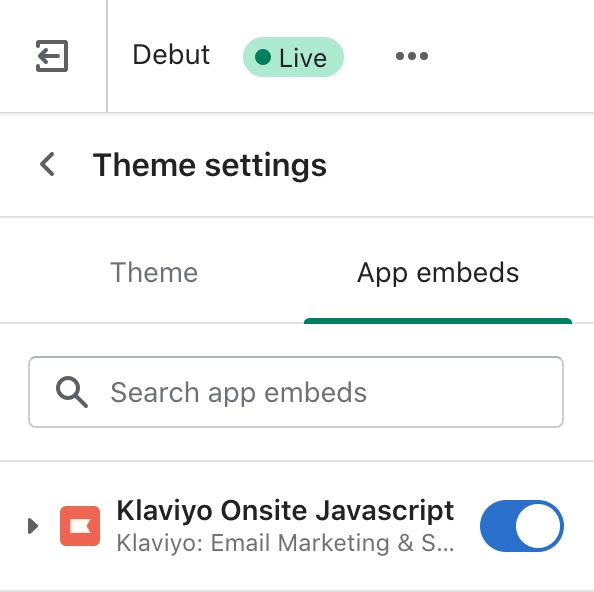
- Click Save.
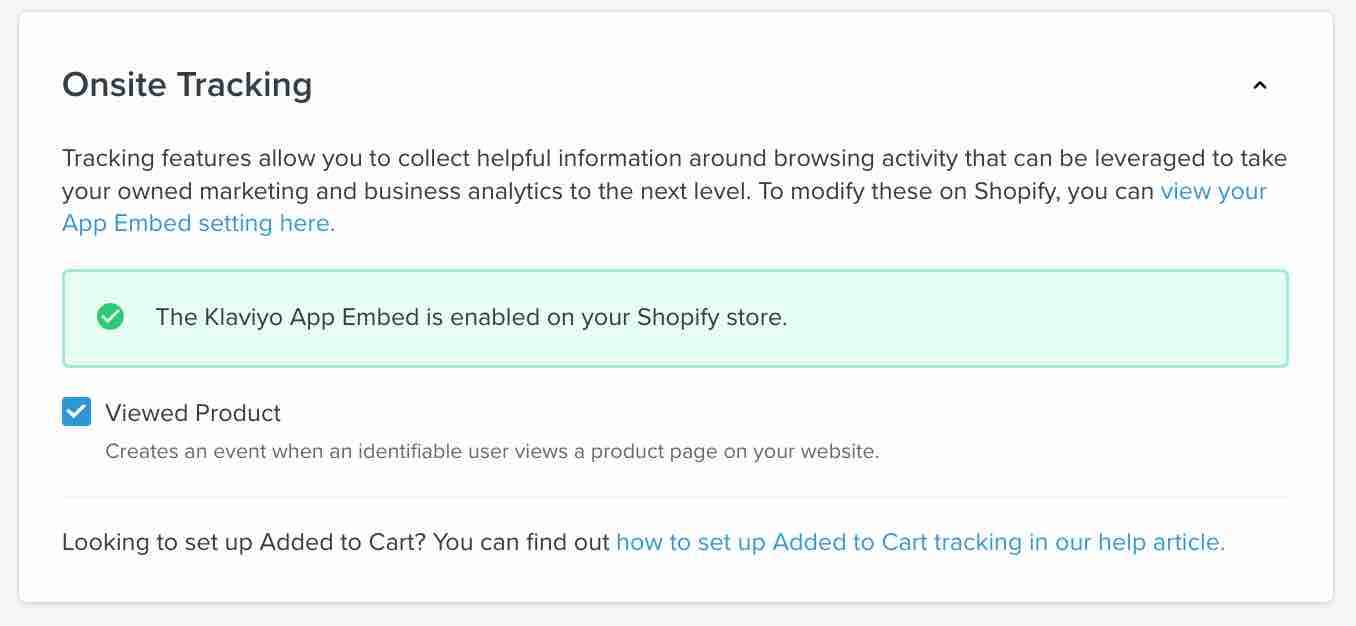
- Navigate back to your Shopify integration settings page in Klaviyo, and refresh the page if needed. You should see a green callout noting that your app embed is now enabled.
The help guide below provides more information regarding enabling Klaviyo App Embed through both the Klaviyo and Shopify platform.