Short answer: You cannot directly edit the trigger on an existing Klaviyo flow. The workaround is to clone the flow. You can set a new trigger during the clone process, which preserves all your emails and time delays. Once the clone is live, you can delete the original (note: the clone starts with fresh analytics).
Hi @JaimeC !
Since Flows are built around the trigger, you will need to Clone your existing Flow in order to modify your trigger, without losing the work you have already put into messages you already have set up in the Flow itself.
To clone a flow:
- Navigate to the Flows tab and find the flow that you would like to change the trigger for.
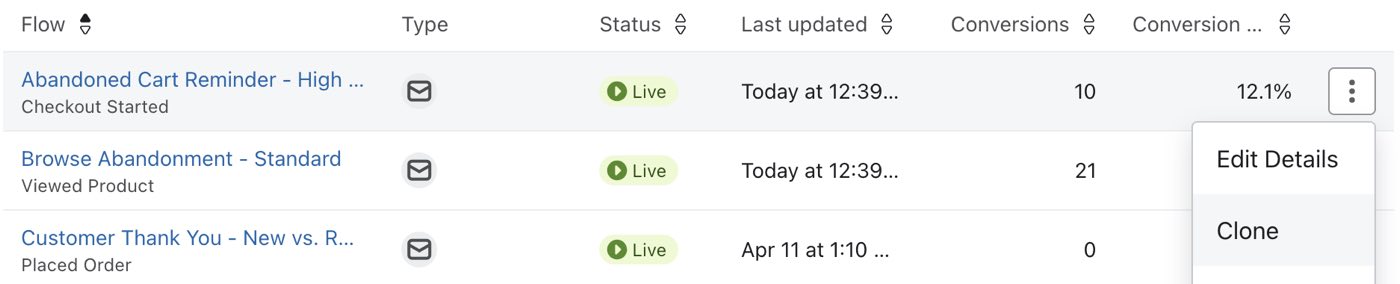
- On the right of the flow, click the Edit Flow button to reveal the dropdown and select Clone.
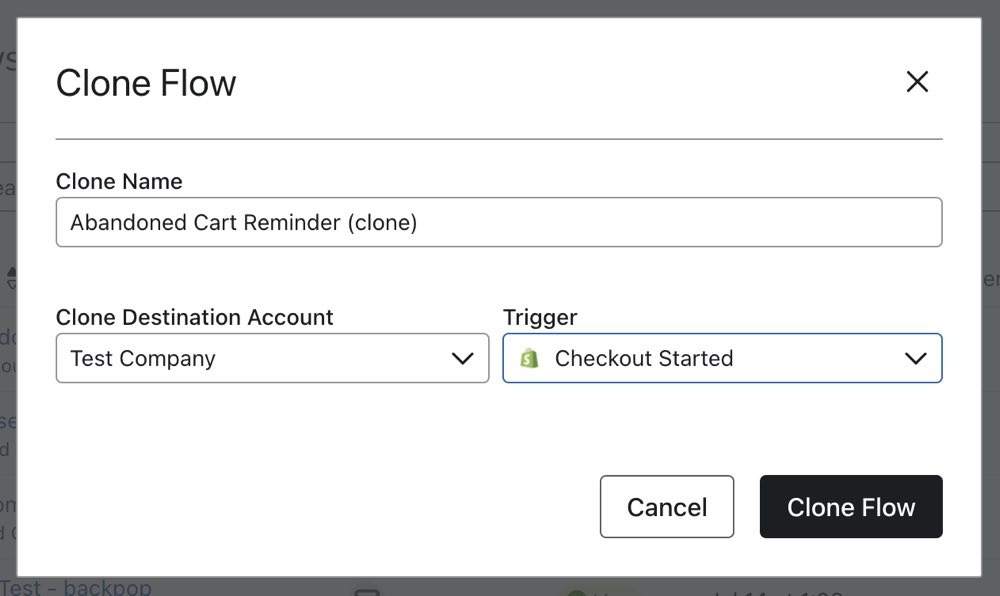
- In the Clone Flow modal, choose a new trigger for the flow by selecting the Trigger dropdown. Change the name of the flow if desired.
- After you clone a flow to update the trigger, you can delete the original flow. Only do this if you don't mind losing the historic analytics associated with it — the cloned version of a flow starts with a clean slate in terms of analytics.
- On the Flows tab, find your original flow.
- Click the Edit Flow button to reveal the dropdown and select Delete.
- A note on the clone trigger dropdown: A few members have reported that when cloning a flow, the trigger dropdown only shows lists — not events or segments. If this happens, try scrolling up in the dropdown, as the current trigger type anchors the list position. If event-based triggers still don't appear, this may be account- or plan-specific behavior. Reach out to Klaviyo support to confirm your trigger options.
--
Hope this helps!
-- Ashley Ismailovski
Last updated April 9, 2026.
Ashley Ismailovski, Klaviyo Champion & Director of Email Marketing at SmartSites https://www.smartsites.com/