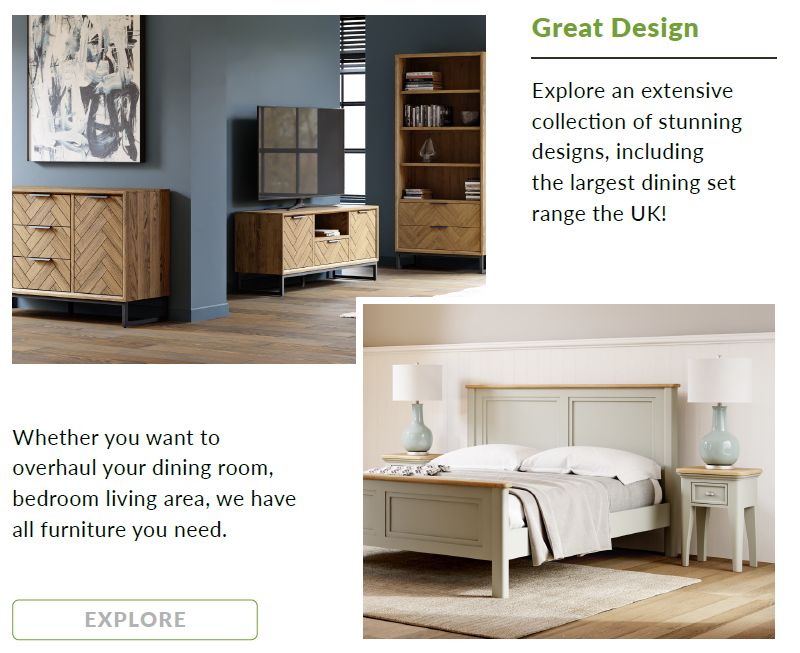
Hi, I am in the process of creating a new email template and wanted to ask the community for help regarding how I can replicate the below layout in the Klaviyo editor (if possible) where one image cuts into the other.
Ideally I don’t want to add the below as a single image but instead have the photos as images and the text as text within the email template.
Welcome to the Community! Thanks for asking your question. I have an idea for you.
Create the layout of two overlapping images including the white space in upper right and lower left as a PNG or JPG.
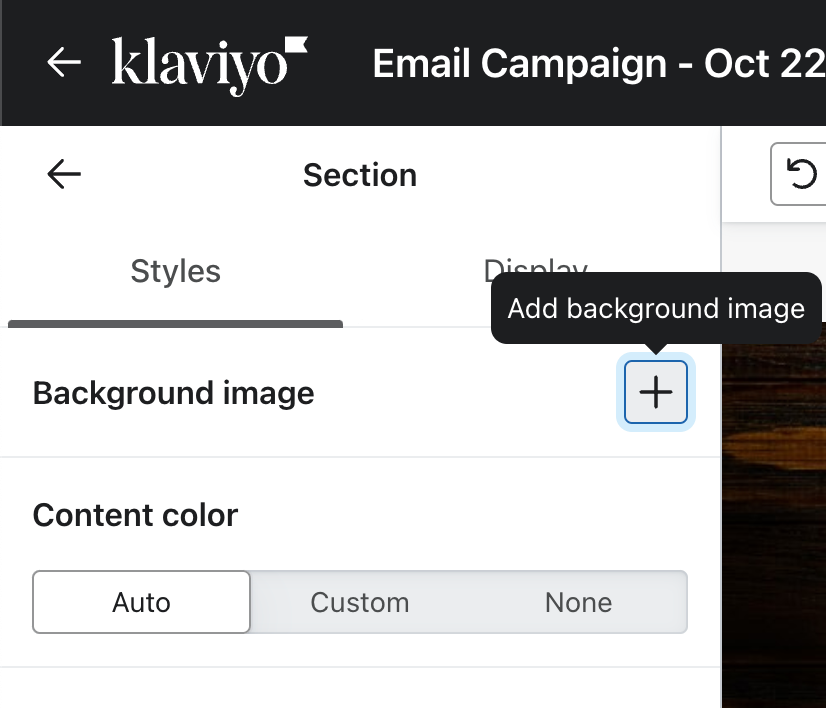
In the email editor, drag a new Section block into your email. Select the new Section. Click the plus sign beside Background image.
Click Select image or drag and drop to upload your newly created image as the background image. *Note you might need to adjust some settings such as Content color to align with the rest of your template.
Drag and drop a Columns block into your new Section. Drag and drop two Text blocks into the left and right “Drop content here” areas. Drag and drop a Spacer block above the left Text block. Drag and drop another Spacer block below the right Text block. Add your copy into the Text blocks. Adjust the size and padding of the Spacer and Text blocks to place them how you want them in the white space area of the background image.
Hope this helps! Let us know how it goes!
Adam Ragsdale | Email Strategist | R Bar Solutions
Welcome to the Community! Thanks for asking your question. I have an idea for you.
Create the layout of two overlapping images including the white space in upper right and lower left as a PNG or JPG.
In the email editor, drag a new Section block into your email. Select the new Section. Click the plus sign beside Background image.
Click Select image or drag and drop to upload your newly created image as the background image. *Note you might need to adjust some settings such as Content color to align with the rest of your template.
Drag and drop a Columns block into your new Section. Drag and drop two Text blocks into the left and right “Drop content here” areas. Drag and drop a Spacer block above the left Text block. Drag and drop another Spacer block below the right Text block. Add your copy into the Text blocks. Adjust the size and padding of the Spacer and Text blocks to place them how you want them in the white space area of the background image.
Hope this helps! Let us know how it goes!
Adam Ragsdale | Email Strategist | R Bar Solutions
I really liked the idea of @Rich Ward and strategy of @Adam Ragsdale but make sure to test out this idea in cell phone before implementing this idea.