


Julia.LiMarzi
Klaviyo Employee
Klaviyo Employee
November 27, 2020

Adding images side by side in an email

  • November 27, 2020
  • 22 replies
  • 24213 views

You’re designing your email, and all you want is to have two images side by side, but how do you do it? Well, there are 2 ways:

  1. Use columns. In the Klaviyo email editor, choose Add Columns to Email and drag it to where you would like your images to be. It will populate with text blocks by default. Drag in your image blocks and delete the text blocks if you don’t plan to use them. This method will allow you to easily include 3-4 images in a row and can be used with any content type.
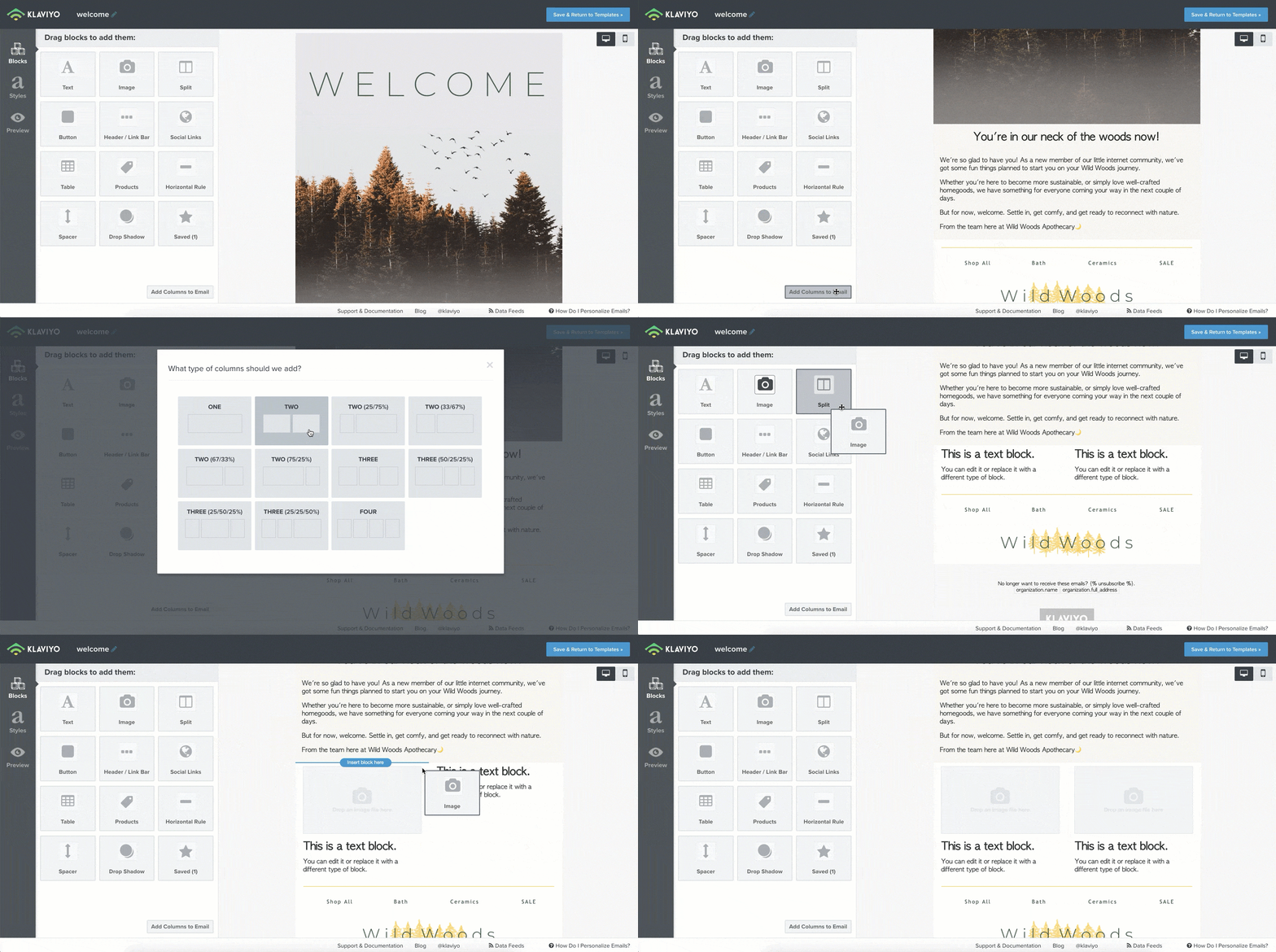
    using columns to add images


  2. Use a Split. In the editor within the block options choose Split and drag the block to where you want your images to be. The Block Tab will show a column editor. Under Layout/Types > Content change the dropdown for both columns to “image”, then click into each column tab to upload your images. This method allows you to adjust the width of your images easily after adding the split if you want one to be wider than the other.
    using splits to add images


Have any other questions about how to create unique image layouts in your emails? Ask away below or share examples of layouts you love.

    This topic has been closed for replies.

    22 replies

    New Member
    March 18, 2021

    Hello,


    they are all the same height and width. I put the images on a table block so It can be side by side via mobile. 


    However, I do have another problem. I put these images in a table and link them accordingly. When I view the test email on gmail desktop and mobile, it asks me to save the image rather than linking me to the product page. Why is this?

    Contributor I
    June 16, 2021

    I’ve been using tables and split blocks to create columns… and never even noticed the column button at the bottom! Super useful.


    Any idea how I can remove spacing between them? i went to block style and removed all padding but there is still white space between the columns

    Julia.LiMarzi
    Klaviyo Employee
    Klaviyo Employee
    June 21, 2021

    Hey @ayay123,

    There are a couple things that could be affecting the spacing between the columns.

    One is Padding, which you’ve already adjusted. Some blocks such as the text block also have the option to adjust Margins. Padding will adjust the spacing within the block whereas margins will adjust the spacing around the block in relation to other blocks. 

    If you are using an image block, also be sure to check that you’ve set the image to Fill Image Area, which is found in the Block Settings below the alignment toggle. 

    Hope this helps!

    -Julia
    TeamWERQ
    Contributor I
    Contributor I
    July 20, 2021

    I am having a similar problem described above.  I have 3 images, all the same height with varying widths that need to but up against each other with no spacing or padding at all.  This is what I am looking at right now.


    All image block settings are as follows–


    Here are the settings for the left image block–


    Here are the settings for the center image block–


    Here are the settings for the right image block–


    Even worse yet in the PREVIEW another image appears above it that is not shown when I get into the Edit Content mode.  So I cannot even remove it because it does not appear when I get into the edit mode.  If I send a preview email, the other image above the block appears.  I cant understand how this is possible.  I saved the flow, got out of KLAVIYO and logged back in again.  Same problem.


    I am trying to understand why it seems so difficult to align 3 images that are the same height.  My settings do not indicate any spacing or padding yet this is what I am left with–


    TeamWERQ
    Contributor I
    Contributor I
    July 20, 2021

    I tried to build the 3 images butted up against each other in a Table Block and that does not work either.

    There is no padding specified.  All of the images are the same height, I confirmed in Photoshop at 954 pixels.


    David To
    Klaviyo Employee
    Klaviyo Employee
    July 20, 2021

    Hey @TeamWERQ,

    I think the issue you are seeing of why despite these three images having the same height are not lining up directly next to each other has to do with the varying width of your images. For starters, the default email width of every template is 600px. While you can adjust this default setting, we don't recommend increasing the width of your template unless this is required for a more advanced layout as 600px is the recommended width to display appropriately on both Mobile and Desktop device. You can also learn more about optimal template and image sizes from the Optimal Email Template Width and How to Use Images in Emails Help Center Articles.

    Since it appears from your screenshot you are applying 3 image blocks next to each while using columns, we can typically estimate that each column would be about 200px. Because these three images have varying widths, when applied inside each column, Klaviyo will automatically shrink and optimize these images to fit into the columns. Instead of stretching the content, Klaviyo will shrink them down which will result in the image heights being shrunken as well as opposed to be stretched. 

    To resolve this, I would suggest either importing and using a single image in your email of these three products side by side or alternative using a third party image editing tool such as Photoshop to cut these images into equal sizes (width and height). 

    In addition, when using a table block, you do have less control over the padding of each individual rows. However, if you were using an image in these table rows, I would suggest enabling the Fill Image Area setting to ensure your image fills up the entire area as much as possible. When using a table block to put these images side by side, I would still suggest ensuring you are using images that have the same width and height for these images to align properly. You can find this Fill Image Area under the image’s Align settings.

    If you need further help optimizing and designing your emails, I would suggest working with an email design specialist or finding one from our extensive network of agency partners

    Thanks for being a Klaviyo Community member!

    David

    Problem Solver I
    August 3, 2021

    Now what if you are using lookup tags and you don’t know how many images you have. You just know you want two or three images per row?

    ie. (hypothetical example)

    <div style="display: grid; grid-template-columns: 1fr 1fr;">
    {% for item in person|lookup:'WishlistItemIDs' %}
    {% catalog item.SKU %}
    <div>
    <img src="{{ catalog_item.featured_image.full.src }}"/>
    </div>
    {% endcatalog %}
    {% endfor %}
    </div>


    David To
    Klaviyo Employee
    Klaviyo Employee
    August 3, 2021

    Hey @odp,

    When using the catalog lookup function, this would typically only display one product image unless you are looping and iterating over this variable. In which case, you should be able to apply conditional logic to check for the length of the list using a |length filter. This is also a bit reminiscent of how Klaviyo’s Recently Viewed Product function is set up where it uses a |length >= 3 to only highlight 3 products to display in the email. For further reading, I would also suggest taking a look at the Django Documentation to see what is possible using Klaviyo’s template editor.

    I hope you have a great day!

    David


    Problem Solver I
    August 4, 2021

    Thanks for your reply, very helpful.

    Hey @odp,

    When using the catalog lookup function, this would typically only display one product image unless you are looping and iterating over this variable. In which case, you should be able to apply conditional logic to check for the length of the list using a |length filter. This is also a bit reminiscent of how Klaviyo’s Recently Viewed Product function is set up where it uses a |length >= 3 to only highlight 3 products to display in the email. For further reading, I would also suggest taking a look at the Django Documentation to see what is possible using Klaviyo’s template editor.

    I hope you have a great day!

    David


    A simplified solution is posted below:

    {% for item in person|lookup:'WishlistItemIDs' %}

    {% if forloop.counter0|divisibleby:2 %}
    <div class="controlsEachRow">
    {% endif %}

    {% catalog item %}

    {{ catalog_item.featured_image.full.src }}

    {% endcatalog %}

    {% if forloop.counter|divisibleby:2 or forloop.last %}
    </div>
    {% endif %}

    {% endfor %}


    JimmieaQuick
    Active Contributor III
    March 7, 2022

    Table is a good solution (compared to using columns) for making sure background color works properly without white spaces. But it seems that table areas don’t allow for custom fonts, so while the background looks good, the module sticks out like a sore thumb due to font difference. So… ultimately I’ve got to choose which is lesser of two evils.

    UPDATE: somehow when I left the template and came back, the font started appearing in the table! Yay! So table is an excellent solution.