I am wondering if it is possible to exclude certain items from the dynamic table block for the abandoned cart e-mails. Or only include certain items/ collections. These are items that are “in” their cart but I do not want to send them to encourage them to finish checking out. For example I have the cloverly app for offsetting carbon footprint for shipping and I also have an app that I use to have multiple options for products. I don’t want these items showing in the abandoned cart e-mail. Is there a way to go about excluding these?
Thanks so much for any help!
Natalie
Best answer by retention
@tangleartistry There is a way, but it requires some coding. It’s actually quite interesting to achieve.
If you have multiple different products that you want to exclude from the dynamic table block, the easiest way to do it is to tag those products in Shopify, and then use that tag to exclude the products.
Let’s say for example you tag them with “ac_exclude”.
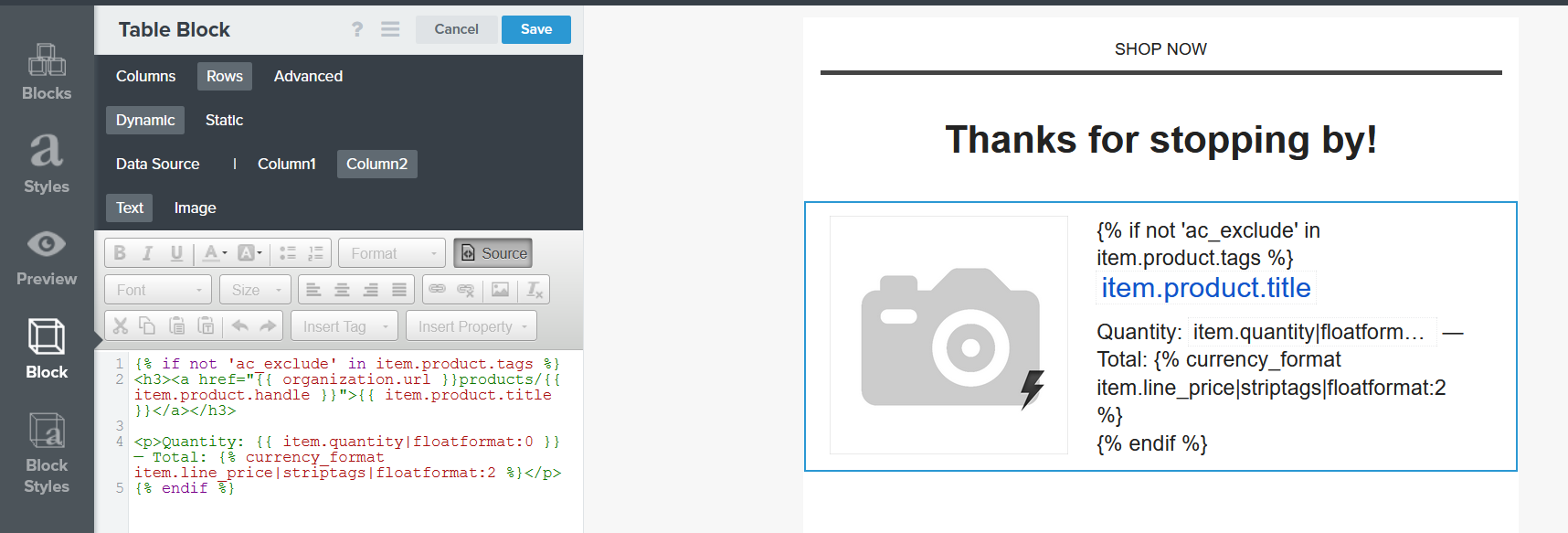
Then, in the dynamic table block, you need to wrap the text part (Title, Quantity, Price, etc.) in an “IF” statement that should look like this:
{% if not 'ac_exclude' in item.product.tags %} <h3><a href="{{ organization.url }}products/{{ item.product.handle }}">{{ item.product.title }}</a></h3>
This will check for each product if “ac_exclude” is one of the tags. If the product doesn’t have the “ac_exclude” tag, it will be shown in the feed.
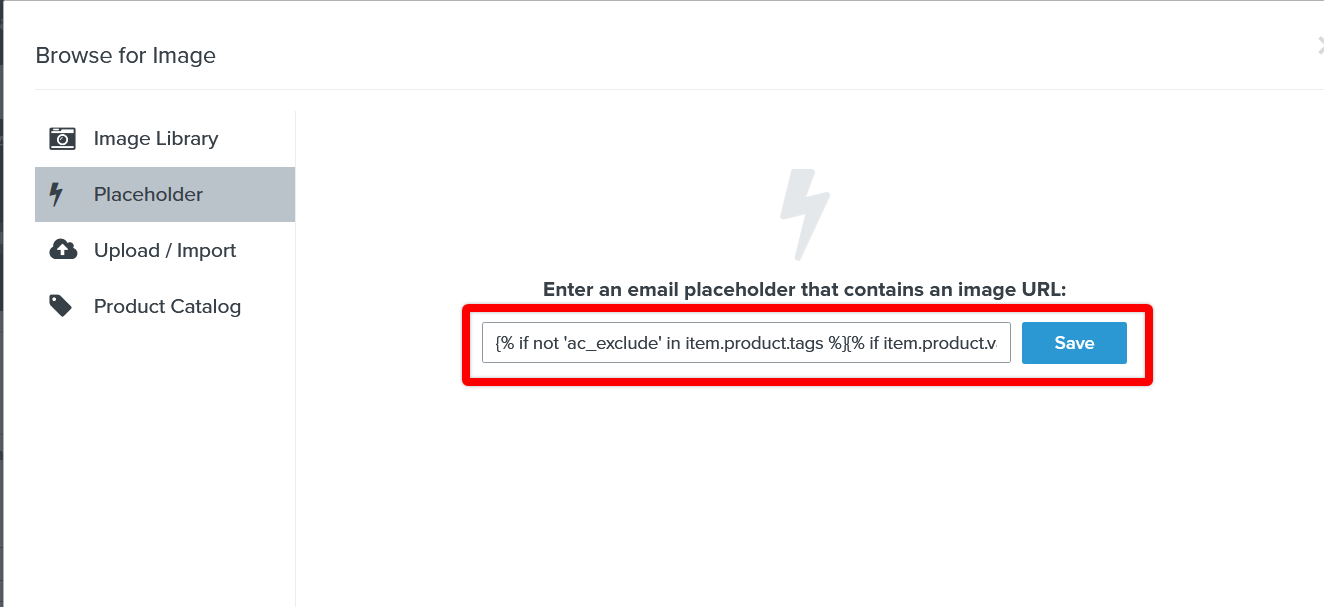
For the image part, you need to wrap the existing snippet, in a new “IF” statement that should look like this:
{% if not 'ac_exclude' in item.product.tags %}{% if item.product.variant.images.0.src %}{{item.product.variant.images.0.src}}{%else%}{{item.product.images.0.src|missing_product_image}}{%endif%}{%endif%}
@retention Thanks for providing your solution. I wanted to know if you could help me make your solution work when combined with the code I added to the dynamic AC block image to unpublish out of stock items. Here’s the documentation I followed: https://help.klaviyo.com/hc/en-us/articles/115005253188
When I follow your solution I am successfully able to remove the product text from showing in a preview. But since I have the “unpublish out of stock” code in the text block where the image block once was, I’m not sure where to add your code to make it work. Here’s what my AC dynamic block looks like:
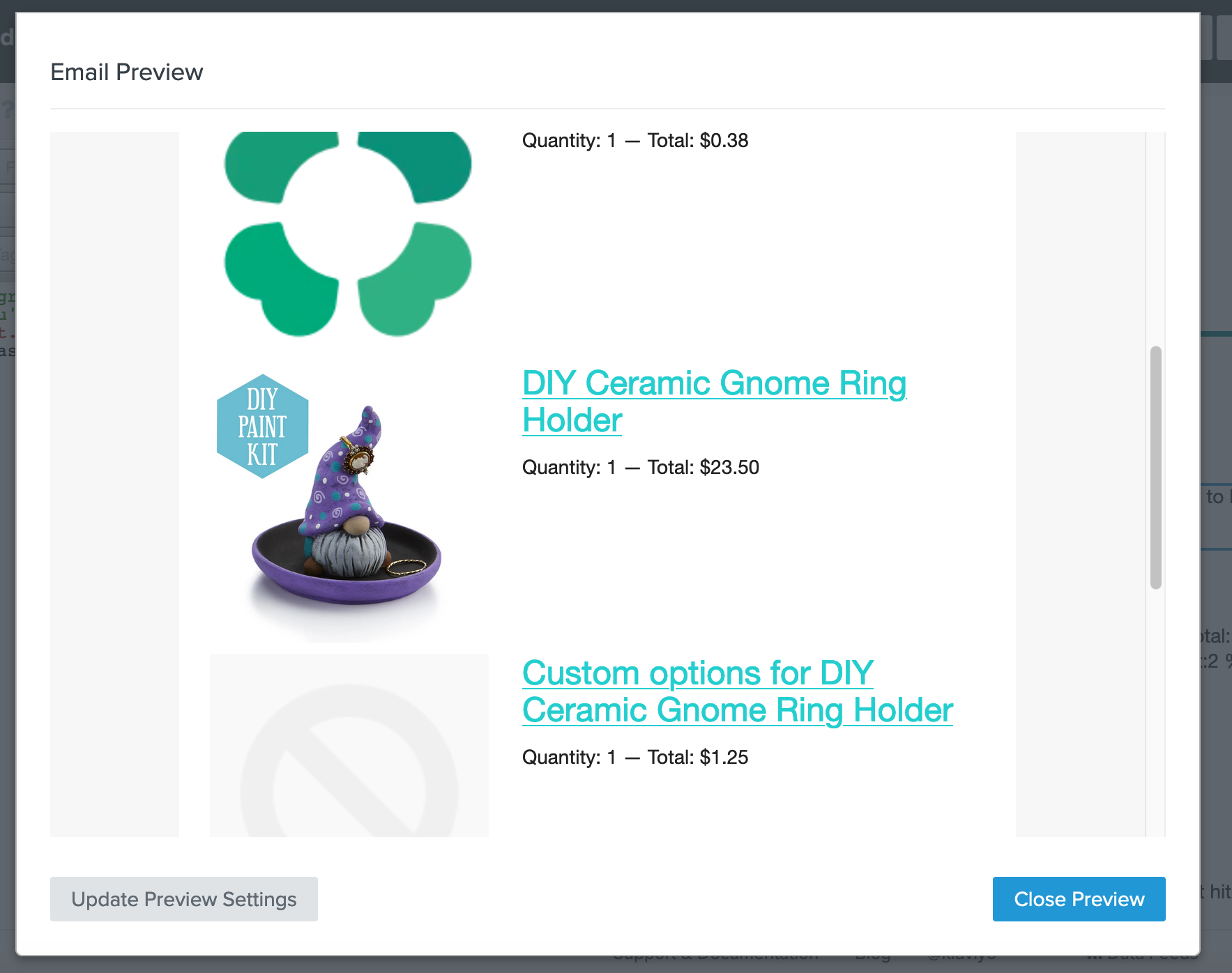
@retention I tried the code snippet you shared and it seems to work by pulling in the correct URL for the image but it is pulling in the image as a shown below. Any idea how to fix this?
Could anyone please help with the code, if I’ve already added code under ‘source’ on our Abandon Browse and Abandon checkout flows, to prevent them firing for products that are out of stock (but published, to collect sign ups for our Back in Stock flow).
thank you for your reply. Of course I used code “in between” that is displayed. I contacted your Chat Support yesterday and we do not know why, but after some tweaking, it worked. Code was correct. But it does work now what is most important.
Thank you!
I’m not having much luck with @retention’s solution. What worked for you? I’m new to this by the way, so it’s likely user error, but two Klaviyo support agents didn’t figure it out, and that’s with account access. I appreciate it!