


Contributor II
March 30, 2021
Solved

Abandoned cart flow: emails not being sent when I test the flow

  • March 30, 2021
  • 16 replies
  • 2534 views

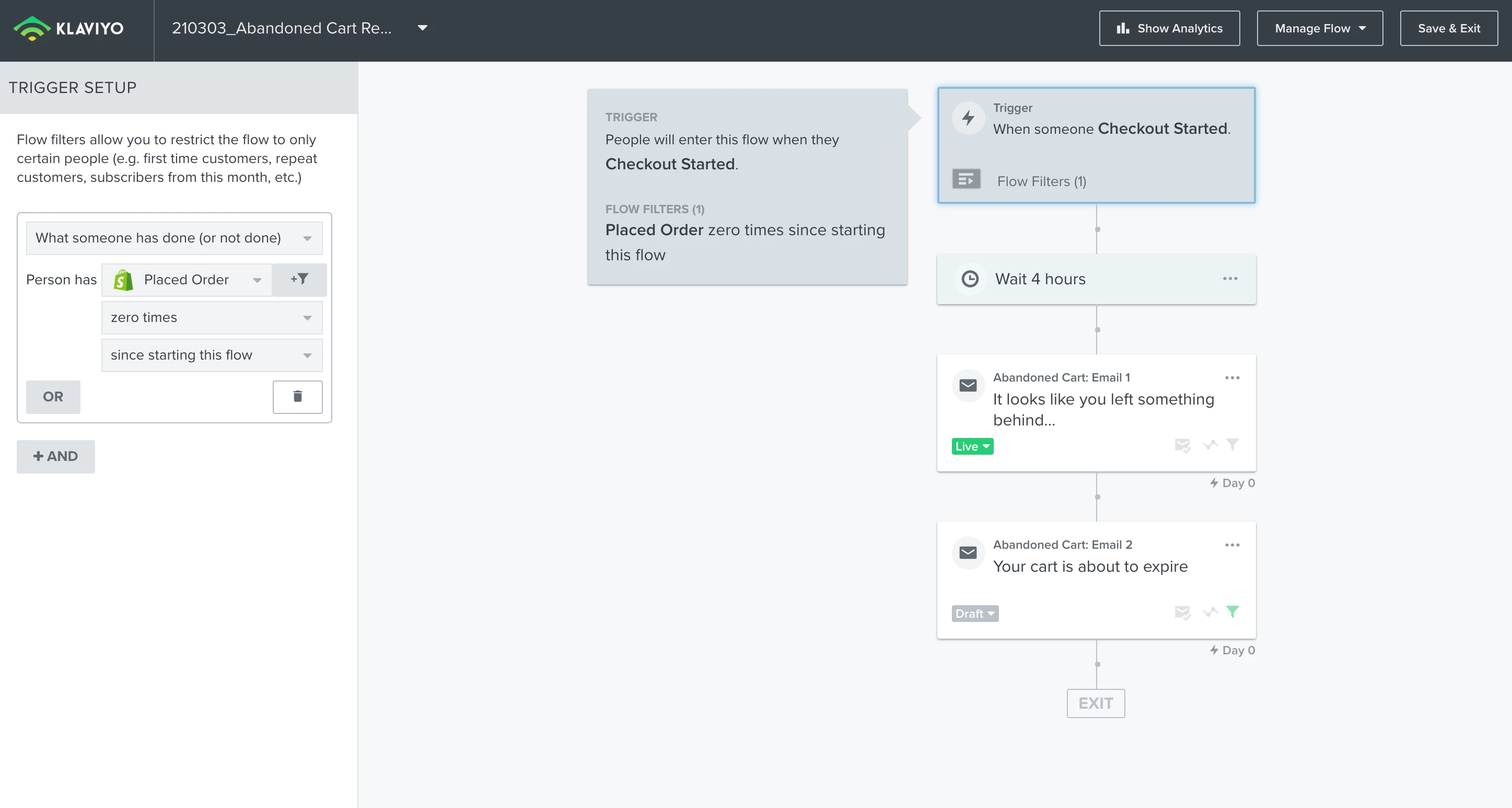
Hi all - can someone help me to work out if I have set up my abandoned cart flow properly? I have been testing it and haven’t received any abandoned cart emails after 4 hours.

My website is a Shopify site.

  • I placed a product in the cart and then left the website
  • 4 hours later (which is the timing of the delay) I didn’t receive any abandoned cart email, even though I just used the default flow that was in Klaviyo.
  • I set the filter to ‘placed order zero times since starting flow’.
  • Then it should send the “It looks like you left something behind” email.
  • (The 2nd email “Your cart is about to expire” I have intentionally left as a draft as I want to test just sending one abandoned email first)

I thought maybe the reason I wasn’t receiving any abandoned cart email might be because I wasn’t logged in to the Shopify site. But I tried it by logging in and I still didn’t receive anything. 
Thank you all for any help you can provide!


Cheers


This topic has been closed for replies.
Best answer by elisegaines

Hi @NomiaMarketing! The Started Checkout event (which triggers this flow) is triggered when you proceed past the first page of checkout. Simply adding an item to your cart without going through that first page of checkout won’t trigger the flow, since that is where Klaviyo is able to access the customer’s email address. 

There’s a bit more info available here: https://help.klaviyo.com/hc/en-us/articles/115005080447-Reviewing-Your-Shopify-Data#checkout-started2 


If you’d like to send a flow message after someone adds an item to their cart, you can set up the Add to Cart event + a Abandoned Checkout flow: https://help.klaviyo.com/hc/en-us/articles/115001396711-How-to-Create-a-Custom-Added-to-Cart-Event-for-Shopify 

16 replies

David To
Klaviyo Employee
Klaviyo Employee
May 18, 2021

Hello @gymopath,

The code used for the Add to Cart function should typically be installed in the Product.Liquid template file. 

You should be able to locate this file by searching “product” within your theme files and clicking into the resulting (/) product.liquid file. 

Once you’ve located this file, the code should be installed directly underneath your Viewed Product. Here’s a refresher on how to install the Add to Cart code should you need it: How to Create a Custom "Added to Cart" Event for Shopify

In the event you are using a customized theme, you’ll want to locate and install the code in the custom theme file that correlates to Shopify’s default product.liquid file. Theme developers are not required to follow some of the basic guidelines used by Shopify, such as their theme file naming convention. Should you need help with this, we would recommend either reaching out to the theme developer in locating the correcting file or reaching out to one of our many Klaviyo partners. You can find more details on this process and the benefits of pursuing a Klaviyo partner in the post below:

https://community.klaviyo.com/job-board-55/tips-for-hiring-a-klaviyo-partner-770

Hope this helps!

-David

Contributor I
May 19, 2021

Hello @david.to, my theme is motion and yes the code is added in the right place, but still there is to add to cart in metrics, I tried now the example email and adding to cart, for adding to cart to appear in metrics or do I need to wait couple of days now?

If nothing works ill reach out to the klaviyo partner for further help.

David To
Klaviyo Employee
Klaviyo Employee
May 19, 2021

Hey @gymopath,

If I’m not mistaken, I believe the Motion theme may actually be using the ID option for their buttons as opposed to a Class Notion. I would recommend ensuring that you have formatted the Add to Cart code to correctly align with your theme’s button ID as detailed in the How to Create a Custom "Added to Cart" Event for Shopify article. 

Here’s a copy of the base code if your theme button is using an ID as opposed to a Class Notion should you need it: 

<script type="text/javascript">
var _learnq = _learnq || [];
document.getElementById("AddToCart").addEventListener('click',function (){
_learnq.push(['track', 'Added to Cart', item]);
});
</script>

As highlighted in the article and the Community Post that Dov had mentioned earlier, you’ll want to make sure that the base code provided above is formatted accurately to be referencing your theme’s button’s ID. You’ll want to format the above default code to replace the “AddToCart” to match whatever ID your theme’s button is using. 

David

Contributor I
July 16, 2021

@david.to @elisegaines 

I’m struggling a bit as all of the Klaviyo tutorials show an edit code screen where all of the product page code is in a product.liquid file. But my product.liquid is composed of 3 sections:

{% section 'product-template' %}
{% section 'product-recommendations' %}
{% section 'recently-viewed-products' %}


So i would guess I need to add the add to cart to the recently-viewed-products.liquid but the code there doesn’t match the set up instructions.

Any suggestions?  

thank you! lizzy

Contributor I
July 16, 2021

<I’m not able to delete my reply above>


I’ve fixed this (it *is* in product.liquid, even though that file doesn’t look like the one in the help section.)


David To
Klaviyo Employee
Klaviyo Employee
July 16, 2021

Hey @lkmz,

Thanks for that update!

I’m sure your comment will help other Community members who may be confused about this as well! 

Based on the theme you are using, your theme files such as the product.liquid file may not match the one found in the Klaviyo help center articles.

Thanks for being a member of the Klaviyo Community!

David