


Adding images side by side in an email
You’re designing your email, and all you want is to have two images side by side, but how do you do it? Well, there are 2 ways:
- Use columns. In the Klaviyo email editor, choose Add Columns to Email and drag it to where you would like your images to be. It will populate with text blocks by default. Drag in your image blocks and delete the text blocks if you don’t plan to use them. This method will allow you to easily include 3-4 images in a row and can be used with any content type.
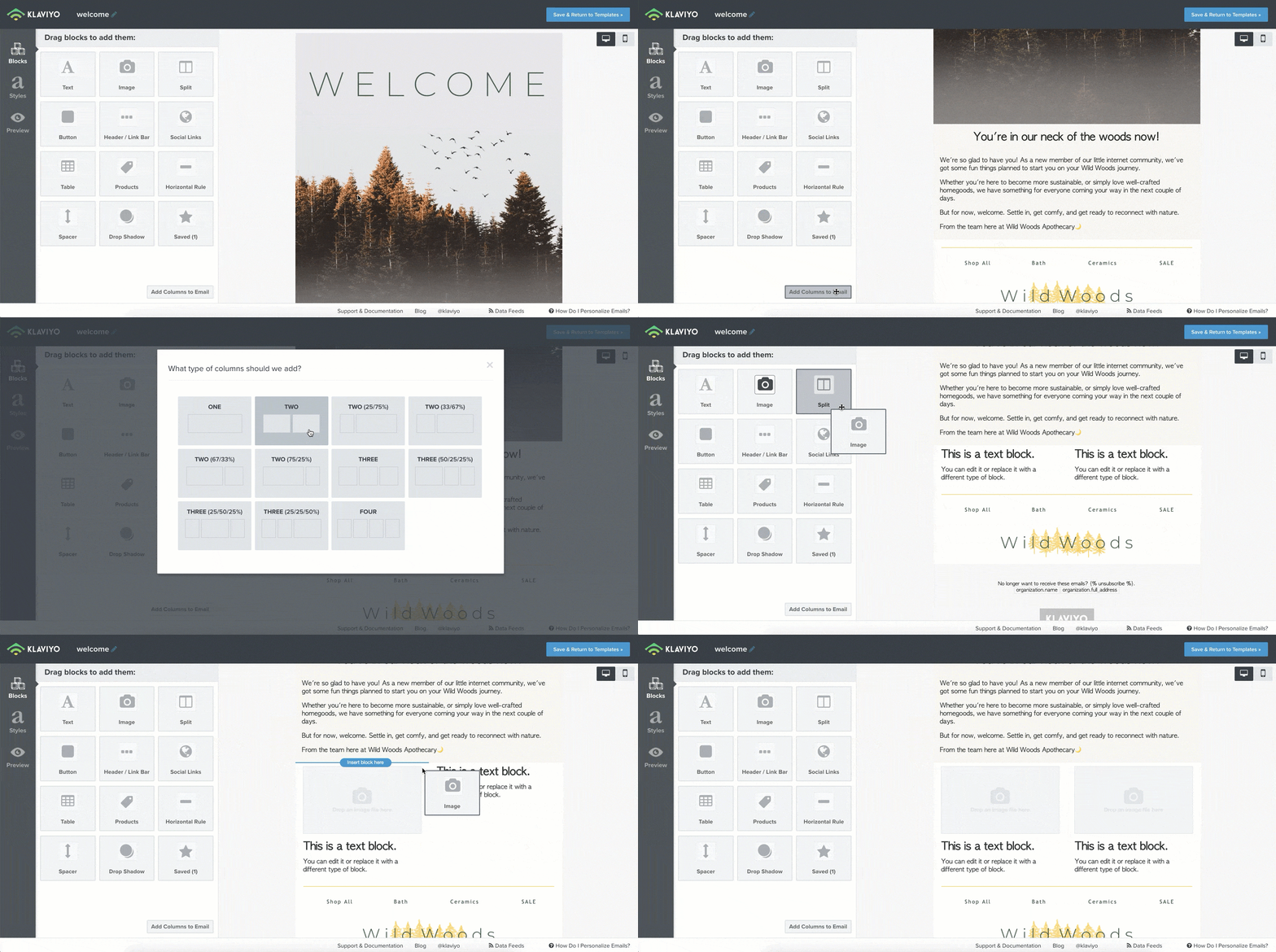
using columns to add images - Use a Split. In the editor within the block options choose Split and drag the block to where you want your images to be. The Block Tab will show a column editor. Under Layout/Types > Content change the dropdown for both columns to “image”, then click into each column tab to upload your images. This method allows you to adjust the width of your images easily after adding the split if you want one to be wider than the other.

using splits to add images
Have any other questions about how to create unique image layouts in your emails? Ask away below or share examples of layouts you love.