I’ve created a bunch of properties in the preference page, but they aren’t showing up on the profiles to select and test. How do I set these properties on profiles so we can segment lists correctly?
I’d like to add on to the answers given in this thread, and also provide you with some information regarding the expected behavior of custom properties.
When you create a new property, that property isn’t automatically assigned to your profiles. They’ll need to take an action (like filling out your preference page, filling out a form, ect) to have that property appear on their profile. Along with this, a newly created profile property that isn’t in any profile yet won’t appear in dropdown menus for segments or flows. That being said, there are a couple ways to address this:
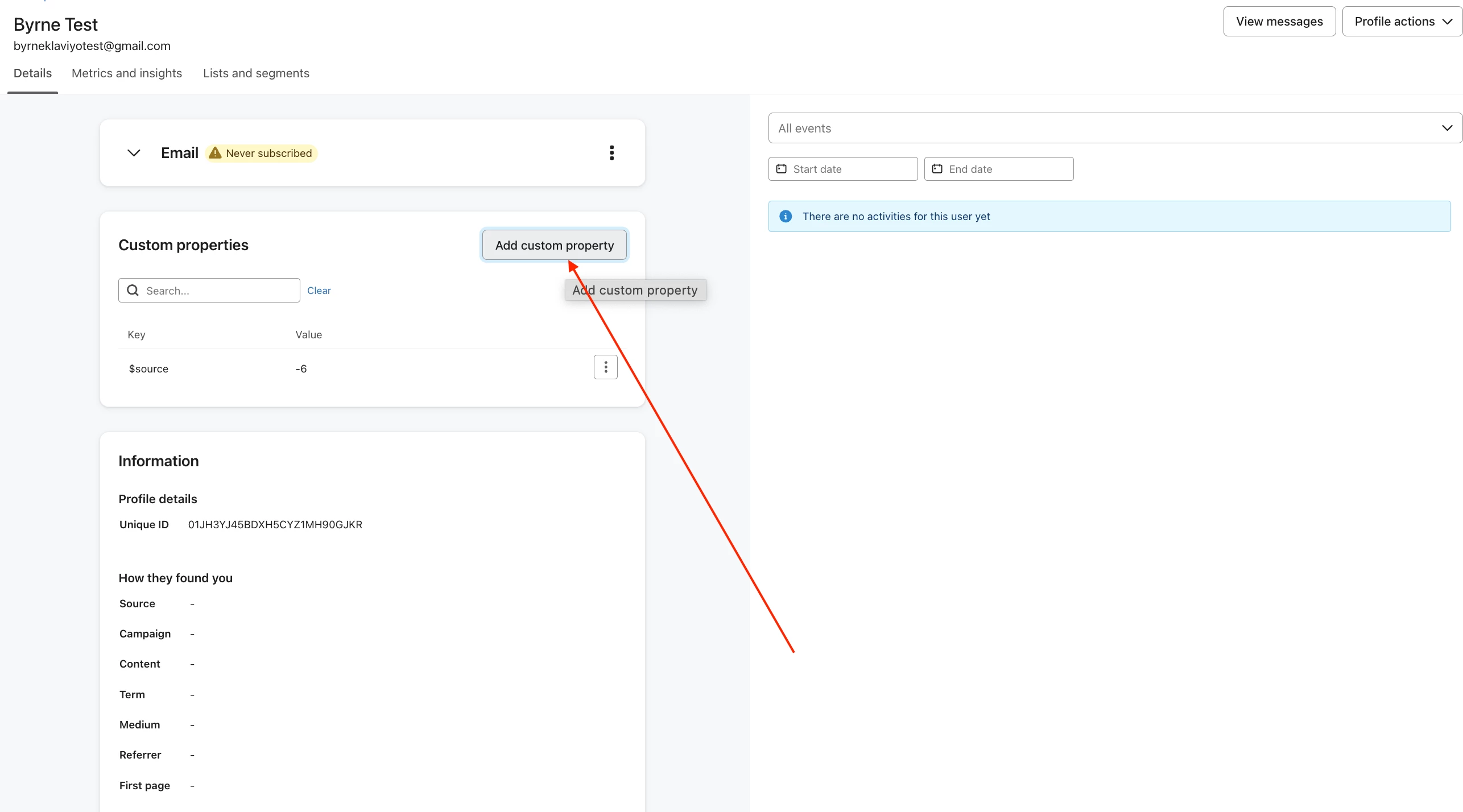
Add that property (and the property value) to one person’s profile. Once you do this, that property and value will appear in dropdowns. To do this, go to a profile, and press “Add custom property.” From there, add the property and value in the box provided. See screenshot below for where to find this option.
Upload a CSV file to Klaviyo where the profile property in question is one of the columns of the file. When you do this, the property and value you set will be applied to all profiles in the upload, and will be available to use in segment/flow dropdowns.
Right now, there isn’t a way for a newly created property to be automatically applied to all your profiles, but the answer that marika-t gave, where you use a segment-triggered flow to apply a profile property to a segment would be a good workaround for this.
Let me know if you have any additional questions, and best of luck!
To make properties created in the preference page visible and usable for segmentation, ensure they are correctly mapped to your profiles. Verify that the properties are saved in your audience database and linked to the subscription preferences. If this seems complex or needs tailored adjustments, feel free to reach out for implementation support.
Unfortunately, Klaviyo doesn’t automatically add them once the profile property is created on the preferences page.
This is because different lists might have different properties, which might not be relevant to other lists.
A way to bulk add is to:
Create a segment that pulls in all profiles that you’d like to update
Create a segment-triggered flow off of the above segment
Add an Update Profile Property action to update the respective existing property (e.g. “emailFrequency”) with the value “weekly”. Or if it’s a new property you’re creating, you would simply Create a New Property
I’d like to add on to the answers given in this thread, and also provide you with some information regarding the expected behavior of custom properties.
When you create a new property, that property isn’t automatically assigned to your profiles. They’ll need to take an action (like filling out your preference page, filling out a form, ect) to have that property appear on their profile. Along with this, a newly created profile property that isn’t in any profile yet won’t appear in dropdown menus for segments or flows. That being said, there are a couple ways to address this:
Add that property (and the property value) to one person’s profile. Once you do this, that property and value will appear in dropdowns. To do this, go to a profile, and press “Add custom property.” From there, add the property and value in the box provided. See screenshot below for where to find this option.
Upload a CSV file to Klaviyo where the profile property in question is one of the columns of the file. When you do this, the property and value you set will be applied to all profiles in the upload, and will be available to use in segment/flow dropdowns.
Right now, there isn’t a way for a newly created property to be automatically applied to all your profiles, but the answer that marika-t gave, where you use a segment-triggered flow to apply a profile property to a segment would be a good workaround for this.
Let me know if you have any additional questions, and best of luck!
To avoid typos and user errors, update your test account preferences with the necessary settings and export the relevant list. Then, use those columns to import the users, ensuring a clean process. If the implementation seems complex, feel free to reach out for further assistance.